

Google Workspace SSO
Google Workspace SSO on RunWhen SaaS uses Auth0 as the broker. Your Google Cloud admin prepares an OAuth client; RunWhen support wires it into your Auth0 connection during SSO onboarding.
These steps happen in Google Cloud Console (not the Workspace Admin console). You need a project with permission to enable APIs and create OAuth credentials.
Before you start
| Item | Detail |
|---|---|
| Redirect URI | https://auth.runwhen.com/login/callback |
| Authorized JavaScript origin | https://auth.runwhen.com |
| What to send RunWhen | OAuth client ID and client secret (via secure channel support provides) |
Contact support@runwhen.com first if SSO onboarding has not started — RunWhen assigns your Auth0 connection name and confirms domain mapping.
Step 1 — Enable the Admin SDK API
- Open Google Cloud Console and select the project that will own the OAuth client (or create one).
- Go to APIs & Services → Library.
- Search for Admin SDK API and open the product page.
- Click Enable.
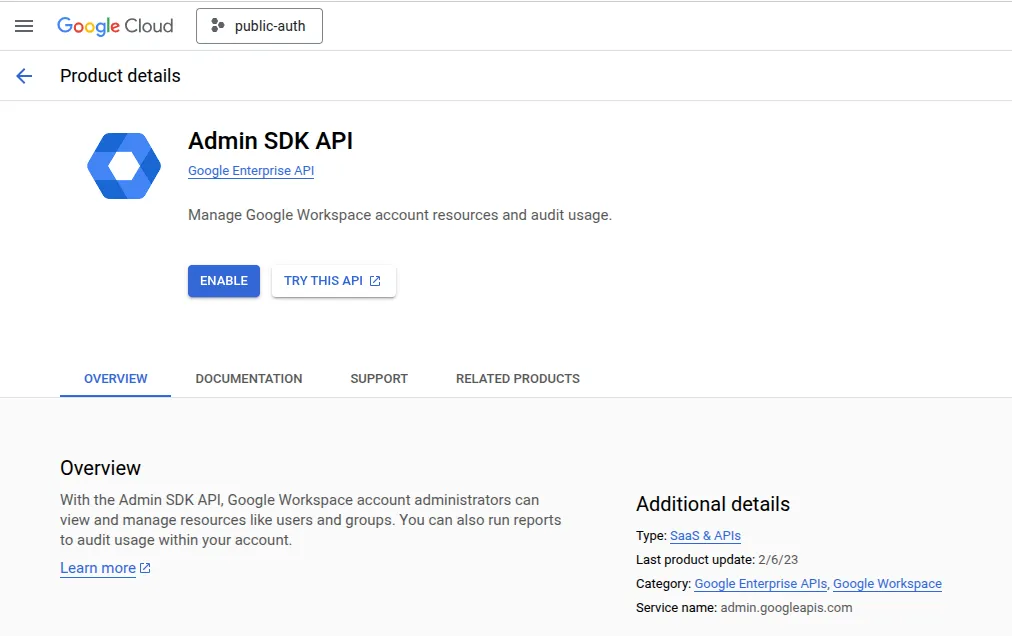
The Admin SDK lets Auth0 read Workspace user profile data during login. Without it, Google sign-in for Workspace domains may fail or return incomplete email claims.
Step 2 — Create an OAuth 2.0 client
-
Go to APIs & Services → Credentials.
-
Click Create credentials → OAuth client ID.
-
If prompted, configure the OAuth consent screen for your Workspace domain (Internal is typical for employee-only SSO).
-
Set Application type to Web application.
-
Enter a name your team will recognize (for example
RunWhen SSO). -
Under Authorized JavaScript origins, add:
https://auth.runwhen.com -
Under Authorized redirect URIs, add:
https://auth.runwhen.com/login/callback -
Click Create and copy the Client ID and Client secret.
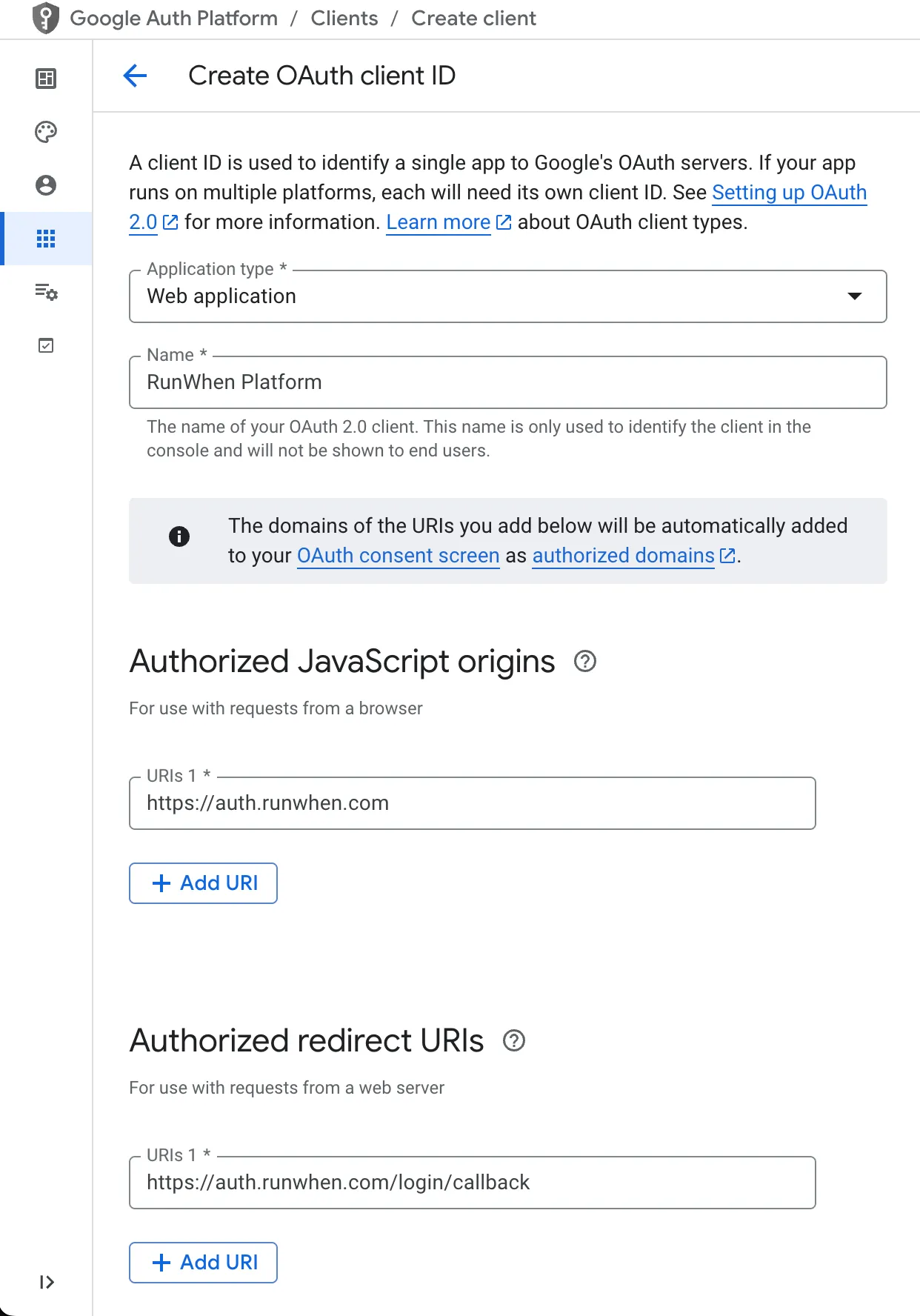
Do not point redirect URIs at
app.runwhen.com. Browser SSO for RunWhen SaaS terminates at Auth0 first; Auth0 completes the flow back to the RunWhen app after authentication.
Step 3 — Send credentials to RunWhen
Email support@runwhen.com with:
- Your Auth0 connection name (from onboarding), if already assigned
- Google OAuth Client ID
- Google OAuth Client secret
- Workspace domains that should authenticate through this connection
RunWhen completes the Auth0 Google / Workspace connection and confirms when users can sign in via Enterprise SSO on the login page.
Related
| Topic | Link |
|---|---|
| SSO overview (SaaS + self-hosted) | Single Sign On |
| User provisioning after first login | User Management |