

Exporting a Debug Transcript
If RunWhen support asks for a debug transcript, you can download the complete technical record of a chat session as a JSON file. It contains far more than the chat view shows — every underlying step the assistant took — and is meant for troubleshooting the assistant, not for sharing.
This is separate from Export PDF (a human-readable copy) and Copy link (a shareable read-only view of the conversation).
Exporting
- In the chat session, click the Export chat icon.
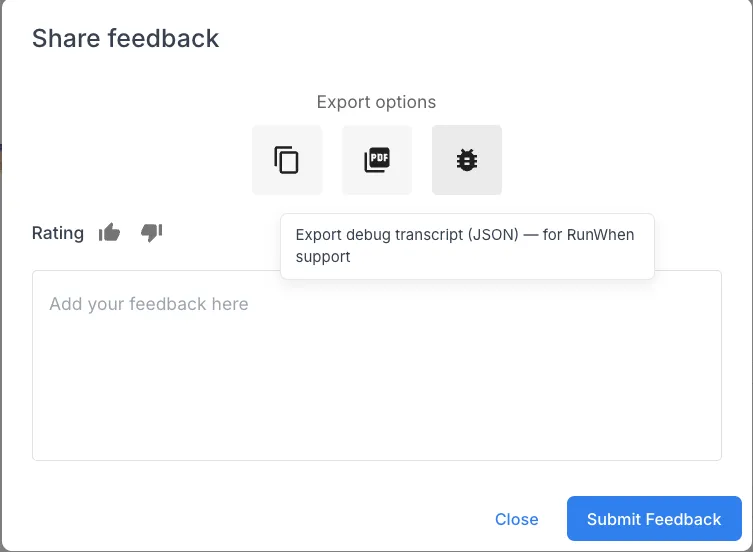
- In the dialog that opens, generate the export link. An Export options row appears.
- Click Export debug transcript (JSON) (the bug-report icon — its tooltip reads “Export debug transcript (JSON) — for RunWhen support”).
A file named runwhen-chat-debug-<sessionId>-<date>.json downloads. The same option also appears on the shared-chat Export view toolbar when you are signed in.
What’s in the file
- The session’s identity and timing, plus any feedback (thumbs rating and comment) left on it.
- An
eventsarray — every step the assistant took, untruncated: tool calls and their arguments, tool results, errors, and timestamps. This is more detail than the chat UI shows, which summarizes.
Before you share it
⚠️ The debug transcript is not redacted — it can contain unscrubbed user input and tool output. Send it only to RunWhen support; do not post it in public channels.
Any signed-in workspace member can export a session they can open — the download uses a short-lived signed link together with your workspace sign-in. No special role is required.