

Workspaces
A Workspace is the tenancy boundary in RunWhen. Everything you work with — AI assistants, tasks, rules, commands, secrets, and SLXs — lives inside a workspace.
A workspace typically maps to a team or environment boundary. Common examples:
- A single product team and its services
- A platform or SRE team spanning multiple clusters
- A shared demo or sandbox environment
- An individual developer’s test environment
Navigating a Workspace
The RunWhen UI organizes each workspace into three main sections, accessible from the left sidebar:
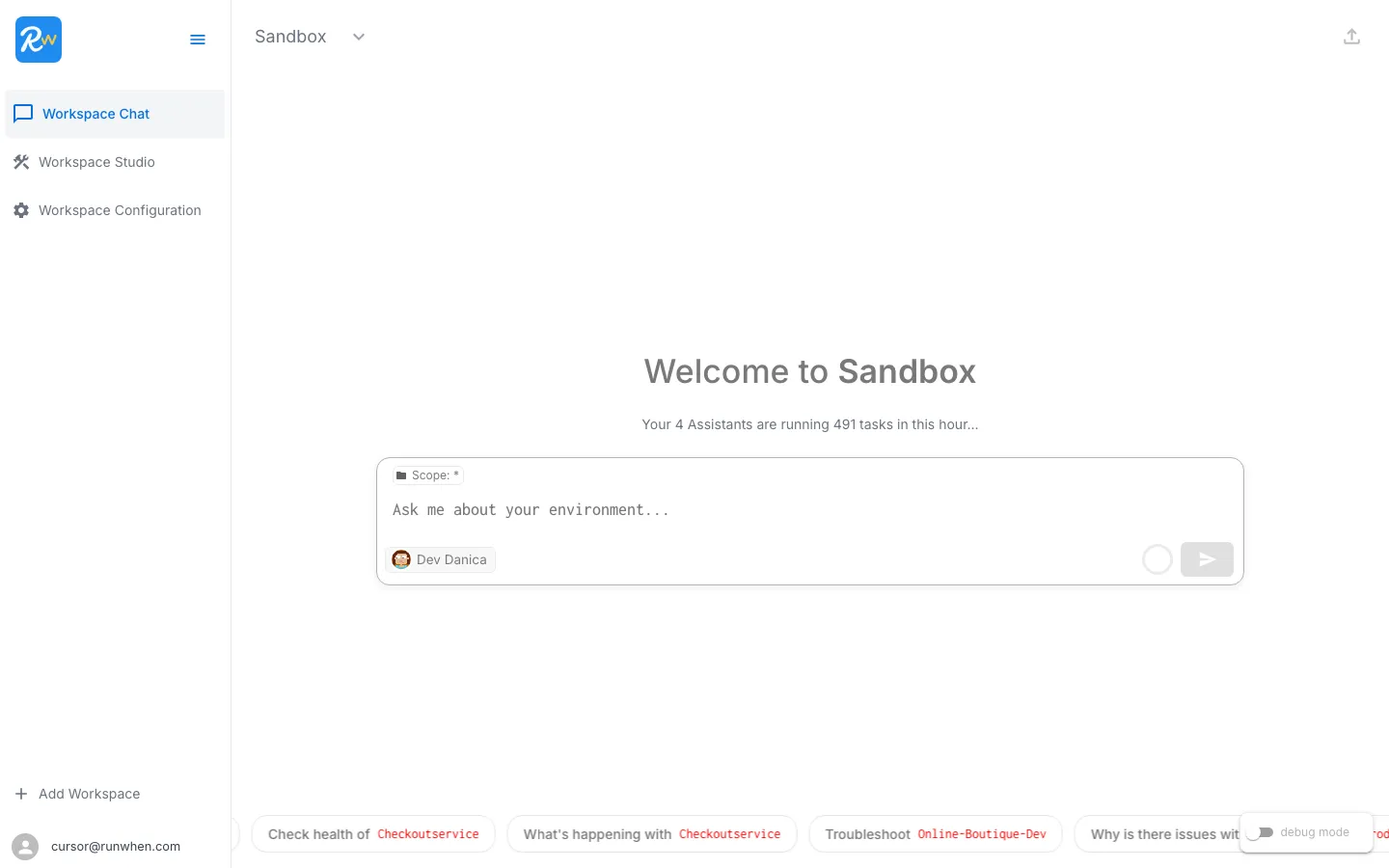
| Section | What It Contains |
|---|---|
| Workspace Chat | The primary interface. Ask questions in natural language and an AI assistant investigates your environment, runs diagnostic tasks, and returns findings. Suggestion chips at the bottom provide quick-start prompts. |
| Workspace Studio | Where you configure and manage operational automation: Tasks — browse and run diagnostic or remediation tasks. Rules — define how assistants behave (e.g., ignore known noise, prioritize certain issues). Commands — reusable multi-step procedures an assistant can execute on request. Knowledge — additional context documents the assistant can reference. Workflows — notification and integration pipelines (e.g., Slack alerts). Assistants — configure the AI assistants available in the workspace. |
| Workspace Configuration | Administrative settings: Settings — workspace name, display title, runner registration, resource scrubber. Users — manage workspace membership. Secrets — credentials stored securely in HashiCorp Vault. |
Workspace Chat
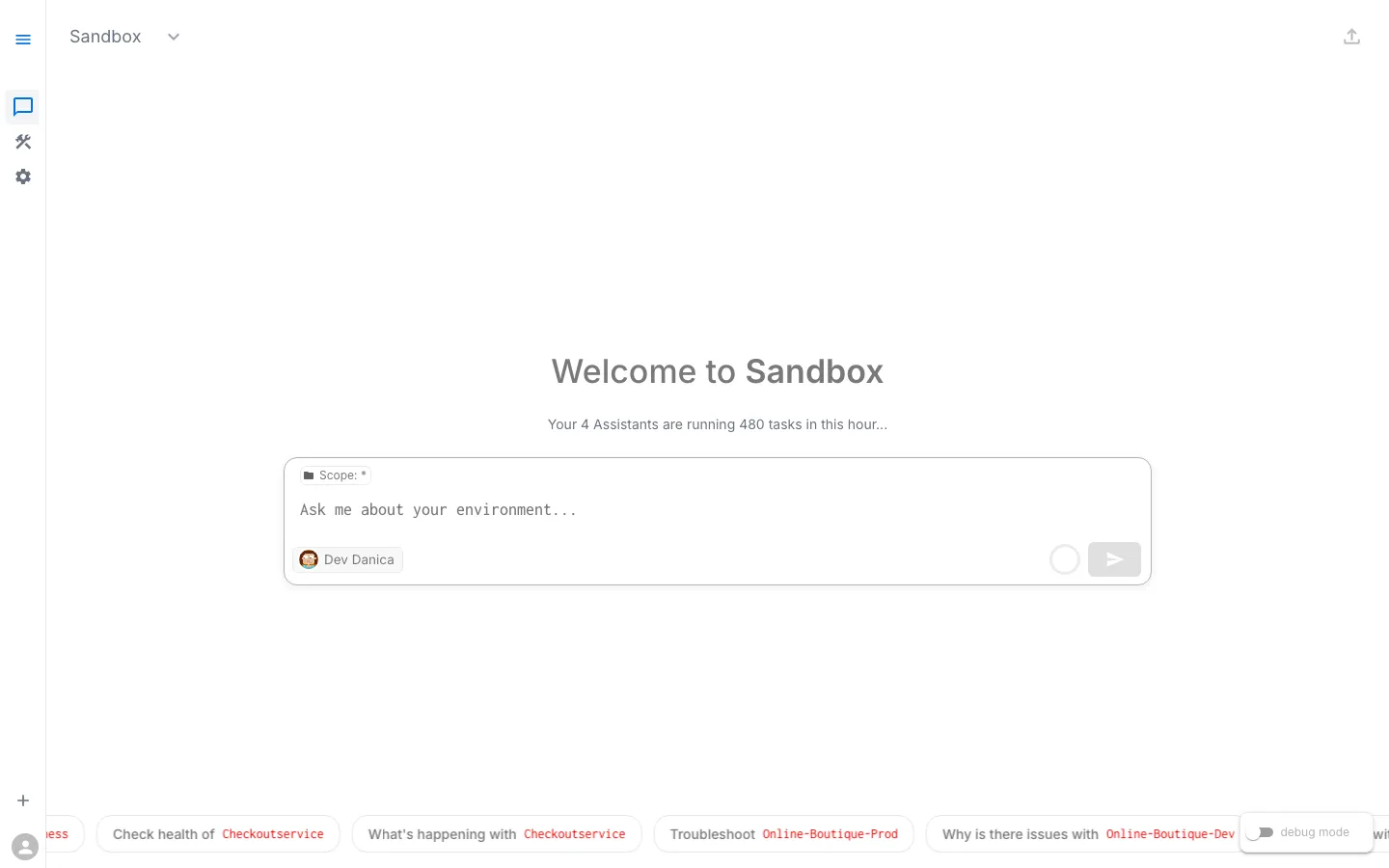
When you open a workspace you land on Workspace Chat. The interface shows:
- The workspace name and a summary of how many assistants and tasks are active
- A chat input where you type questions in plain English
- The currently selected assistant (e.g., “Dev Danica”)
- Suggestion chips with common questions about your environment
Switching Workspaces
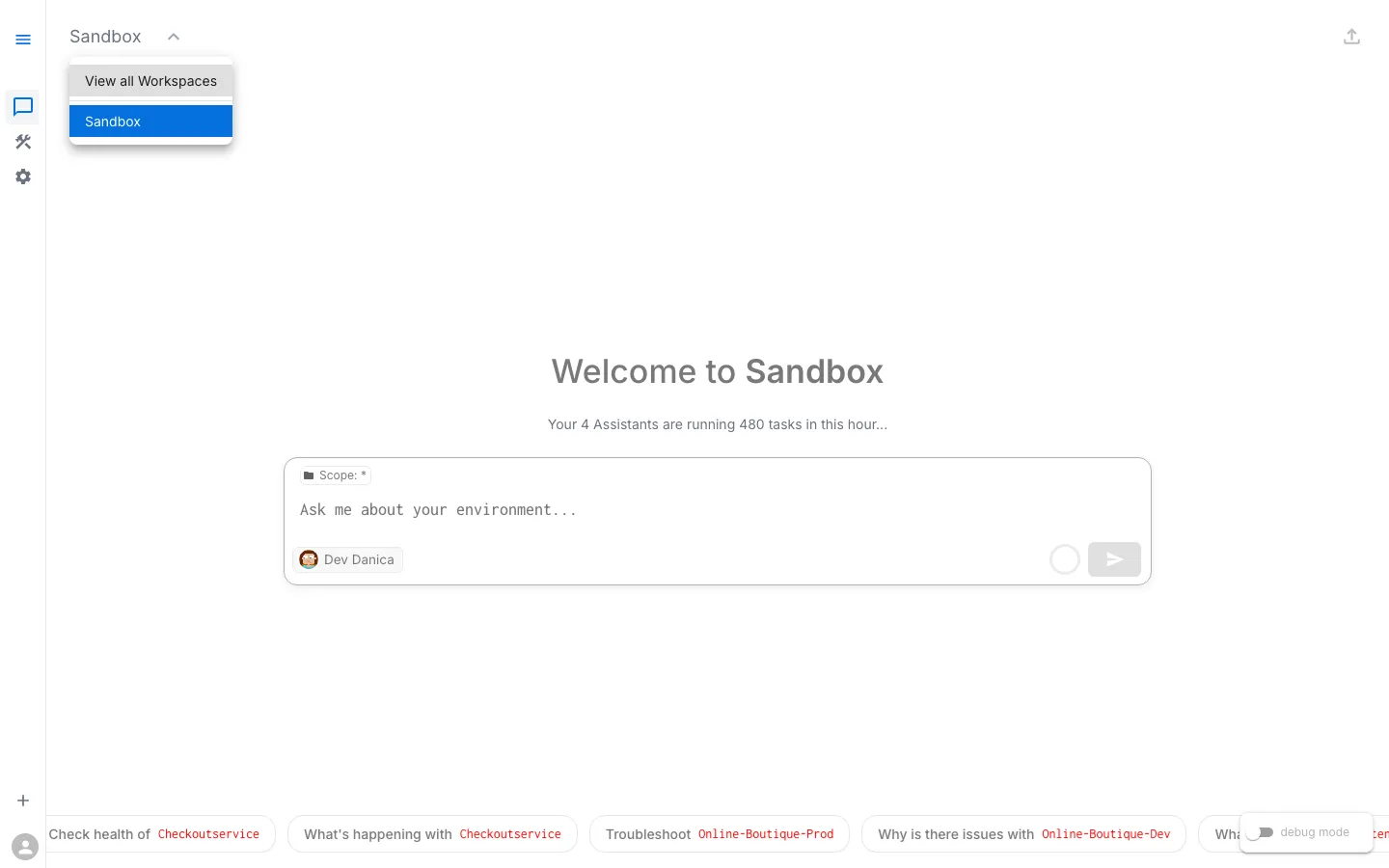
If you belong to multiple workspaces, click the workspace name in the top-left corner to open the workspace selector. From here you can switch to a different workspace or view all workspaces available to you.
What Lives in a Workspace
All of the following are scoped to (and isolated within) a single workspace:
- AI Assistants — each with their own personality, permissions, and thresholds
- Tasks & SLXs — the diagnostic and remediation automation
- Rules — behavioral guidelines for assistants
- Commands — reusable multi-step procedures
- Secrets — credentials for connecting to infrastructure and services
- Users & RBAC — who can see and do what
- Workflows — notification and integration pipelines
Data does not cross workspace boundaries. An assistant in one workspace cannot see or act on resources in another.