

Workspace Chat
Workspace Chat is the primary interface for troubleshooting in RunWhen. Describe a problem in natural language and an AI Assistant investigates on your behalf.
Workspace Chat is available in the RunWhen Platform UI and through the Slack integration. The same AI Assistants, commands (slash-invoked procedures), and knowledge retrieval power both interfaces, subject to Slack-specific UX limits (threads, rich widgets — see the Slack overview).
Overview
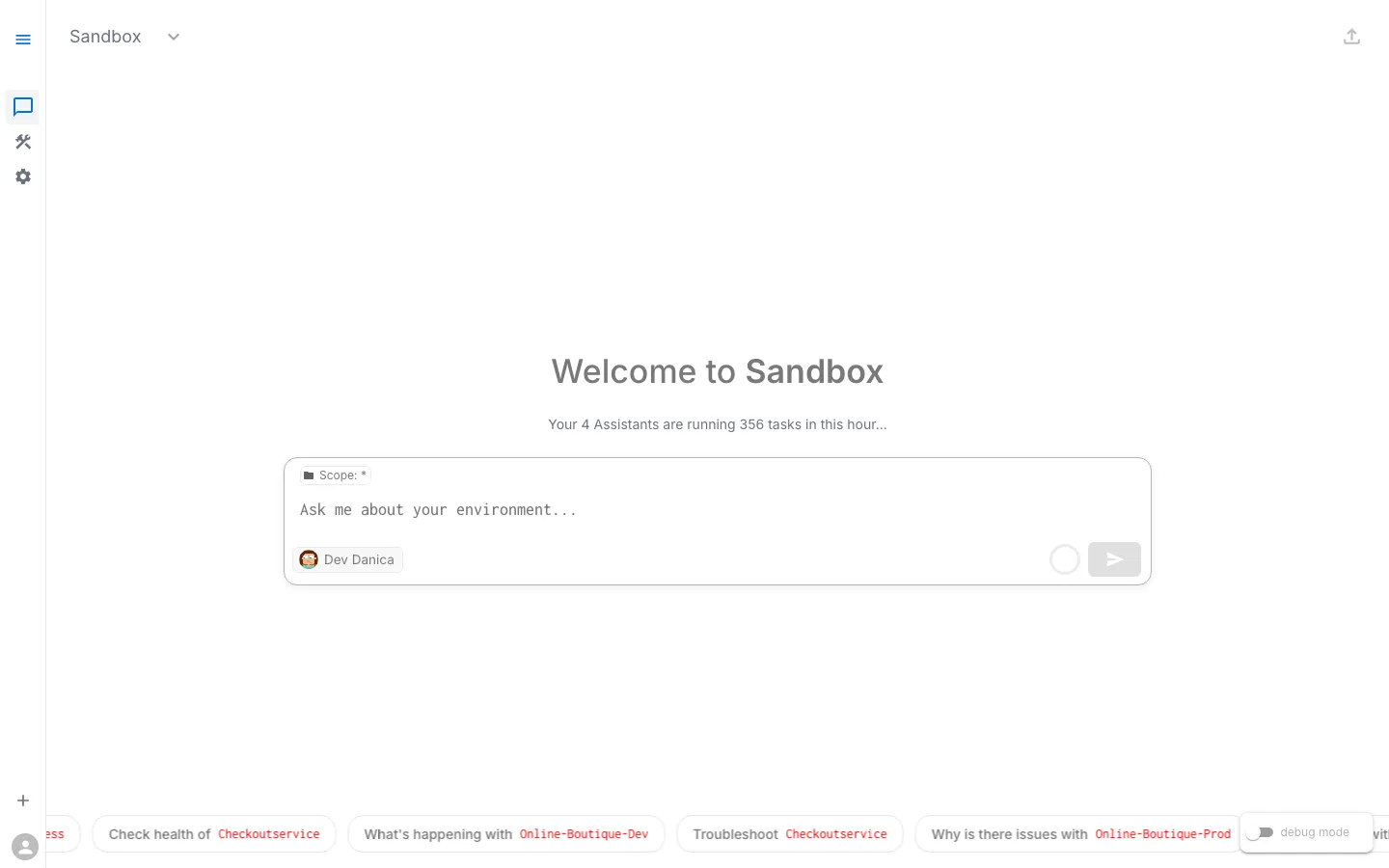
When you open Workspace Chat, you see:
- A welcome message showing your workspace name and how many tasks your Assistants are running
- A text input (“Search here…”) with a Scope filter
- The currently selected Assistant (e.g., Dev Danica) shown below the input
- Suggested prompts at the bottom, dynamically generated from current issues in your environment
The left sidebar shows three icons:
- Chat bubble — Workspace Chat (this page)
- Scissors/tools — Workspace Studio
- Gear — Configuration
Starting a Session
- Open your workspace at app.beta.runwhen.com
- Select Workspace Chat from the left sidebar (chat bubble icon)
- Type a question in the “Search here…” input, click a suggested prompt at the bottom, or type a slash command (see below)
- Press Enter — the Assistant begins investigating immediately
Slash commands
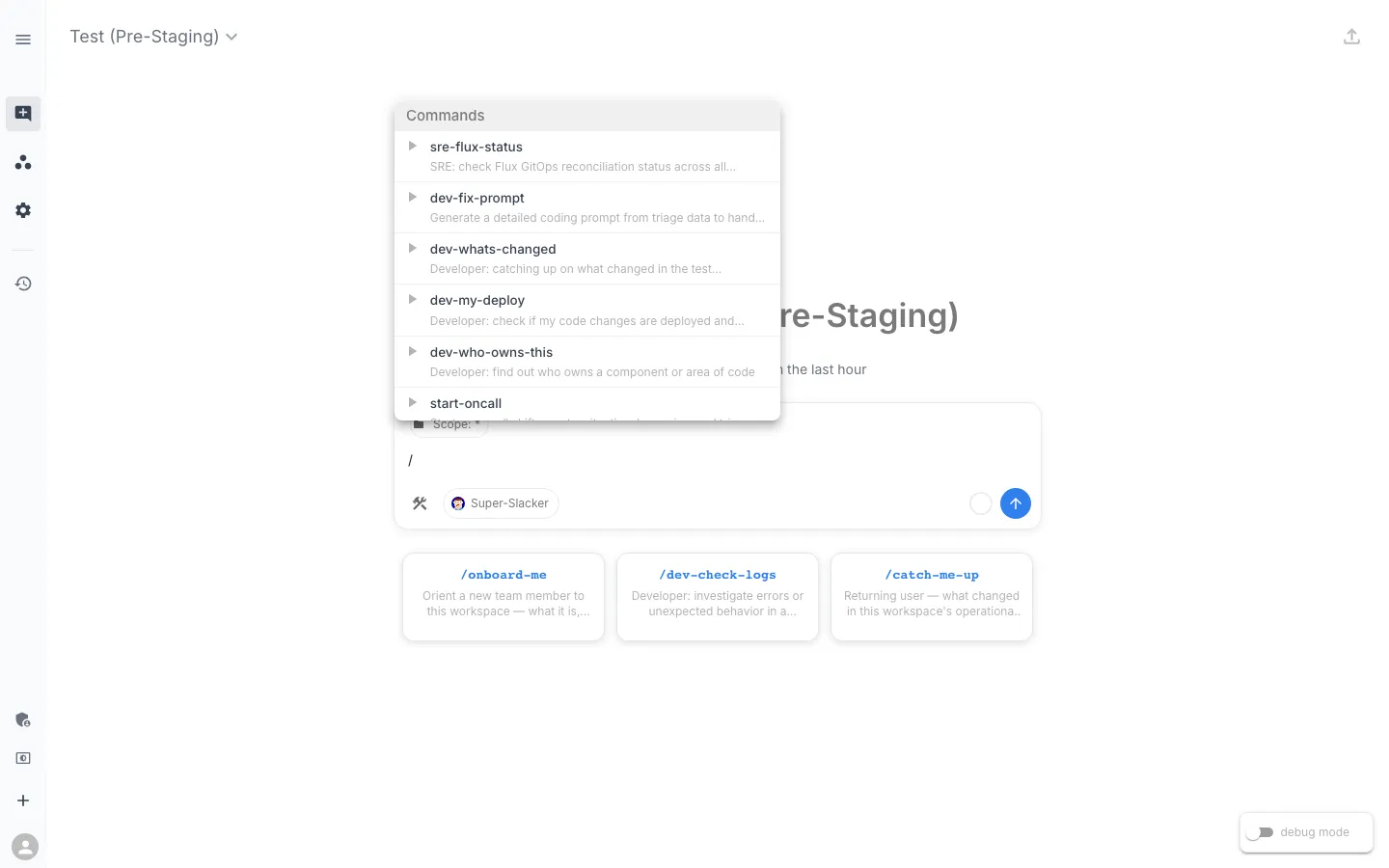
Workspace Commands authored in Workspace Studio appear as autocomplete slash commands in the chat input (for example /onboard-me). Pick one to run a predefined investigation procedure with consistent instructions instead of retyping the same prompt. Commands can also run on a schedule and deliver results to Slack or email — see Scheduled commands.
Example Prompts
Start broad:
- “What’s unhealthy in the online-boutique-dev namespace?”
- “Show me what’s wrong across all namespaces”
- “Check the health of online-boutique-test”
Investigate something specific:
- “Why is the checkoutservice crashing in dev?”
- “The checkout flow is broken in test — what’s wrong?”
- “What do the logs say for the failing pods?”
Ask for a fix:
- “How do I fix this?”
- “Can you roll back the broken deployment?”
- “Show me the YAML to fix the resource limits”
How the Assistant Responds
When you submit a prompt, the AI Assistant follows this workflow:
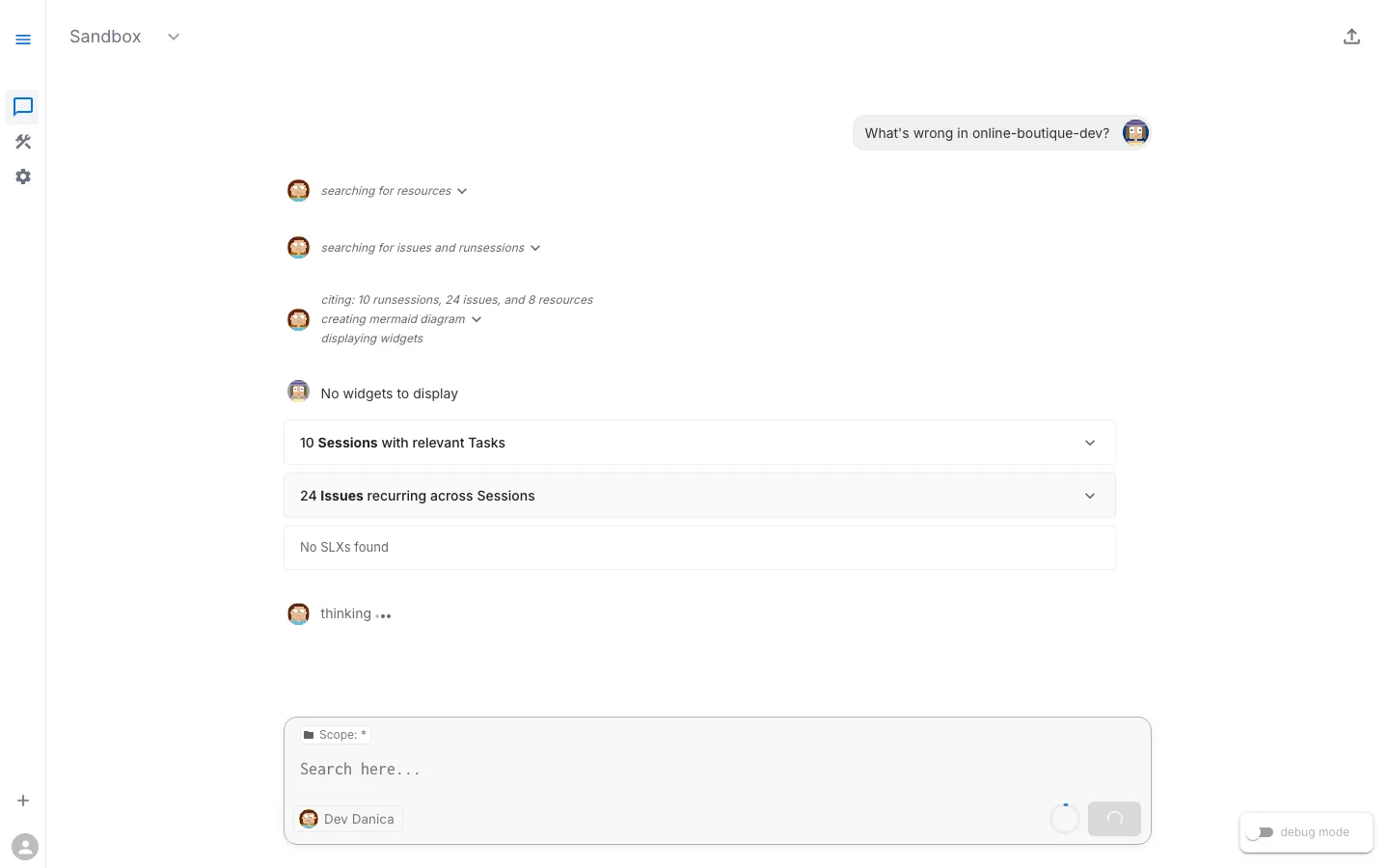
Step 1 — Search for context. The Assistant searches for existing Issues, recent RunSessions, and relevant Knowledge notes scoped to your workspace. You’ll see status messages like “searching for resources” and “searching for issues and runsessions.”
Step 2 — Cite findings. The Assistant cites relevant findings: “citing: 20 issues and 7 resources.” It shows an expandable section: “20 Issues recurring across Sessions.”
Step 3 — Identify and run tasks. The Assistant identifies relevant Tasks from configured SLXs and runs diagnostic commands against your infrastructure via RunWhen Local.
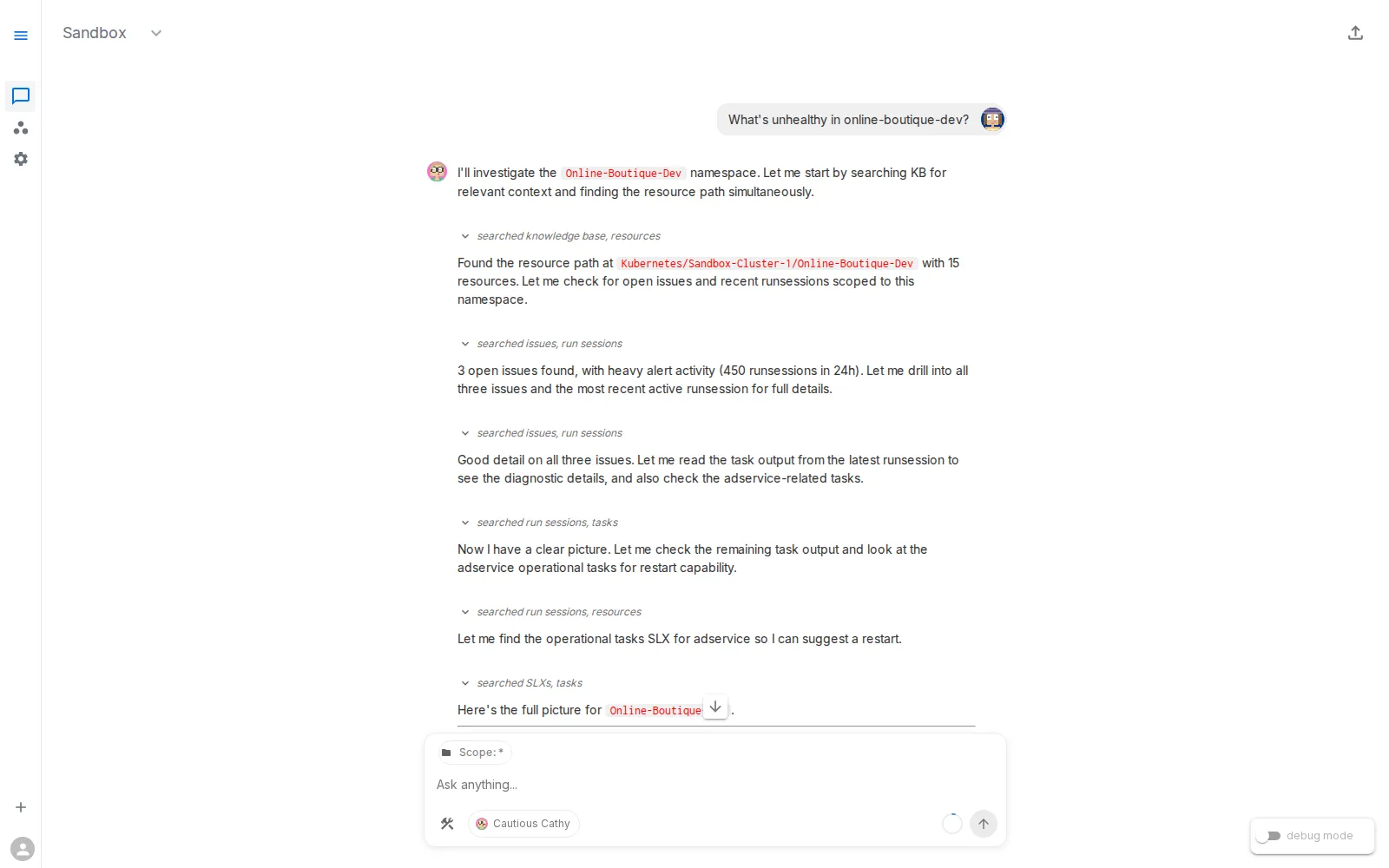
Step 4 — Analyze and present. Results are combined with background production insights. The response includes:
- A structured summary of what was found
- Cited issues and affected resources
- Specific remediation steps or commands
- Links to tasks that were run
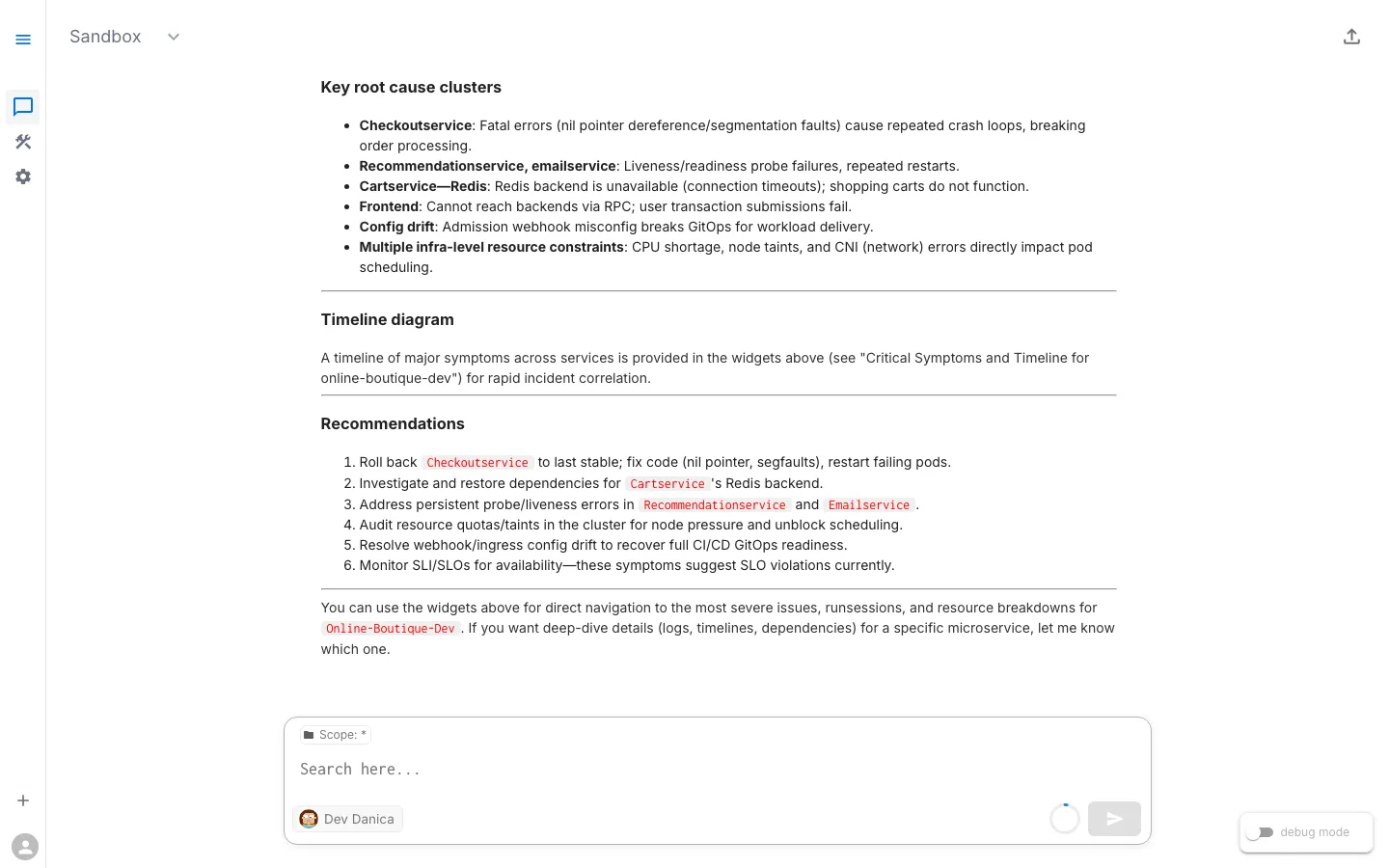
Step 5 — Follow up. You can ask follow-up questions in the same session: “How do I fix this?”, “What else could be wrong?”, “Show me the logs.”
Scope Filter
The Scope selector (shown as “Scope: *” by default) narrows the Assistant’s search to specific resources or namespaces.
When to use Scope:
- Your workspace covers multiple environments (dev, test, prod)
- You want to focus on a single service or namespace
- You want to reduce noise from unrelated resources
Click “Scope: *” and type a namespace or resource name to filter.
Selecting an Assistant
The currently active Assistant is shown below the chat input (e.g., “Dev Danica”). Click the Assistant name to switch between available assistants:
| Assistant | Profile | Best For |
|---|---|---|
| Dev Danica | Standard — Read Only | Developer-focused troubleshooting, dev environments |
| Eager Edgar | Standard — Read Only | Interactive triage, thorough investigation |
| Cautious Cathy | Conservative — Read Only | Autonomous alert response, lower false positives |
| Admin Abby | Strict — Read and Write | Remediation tasks, sensitive resources |
Each assistant has different confidence thresholds that control how aggressively it suggests and runs tasks. See the AI Assistants page for details.
Chat History and RunSessions
Every chat interaction creates a RunSession that captures the full investigation trail:
- Original question or trigger
- Tasks that were executed
- Results and analysis
- Remediation steps recommended
Accessing History
Previous sessions are available in the chat sidebar. You can:
- Review past investigations
- Continue a previous conversation
- Share session results with colleagues
RunSession data is retained for audit and post-incident review.
Tips for Effective Prompting
| Tip | Example |
|---|---|
| Be specific about the resource | ”Why is checkoutservice crashing?” vs “What’s wrong?” |
| Include the environment | ”in the online-boutique-dev namespace” |
| Ask follow-up questions | ”How do I fix this?” after initial findings |
| Use suggested prompts | Click the prompts at the bottom — they reflect actual current issues |
| Use Scope to narrow focus | Set scope to a specific namespace before asking |
| Start broad, then drill down | ”What’s unhealthy in prod?” then “Tell me more about the Redis issue” |
| Reuse team procedures | Type / to pick a saved command from Workspace Studio |
Slack
In Slack, DM the RunWhen app or @mention it in a channel; the assistant replies in a thread so the channel stays readable. Use /runwhen settings in Slack to connect workspaces, map channels, and choose an assistant (see the Slack setup guide).
Rich widgets and some interactive elements may link back to the browser for the full Workspace Chat experience. Limitations such as thread ownership and context depth are documented under Current limitations on the Slack integration page.