Workspace Studio is the management hub for configuring what your Engineering Assistants know and can do. Access it from the left sidebar (scissors/tools icon).
Overview
Studio is organized into six tabs across the top:
|
Tab |
Purpose |
|---|---|
|
Tasks |
View and manage SLXs and their associated diagnostic/remediation tasks |
|
Rules |
Define automated behaviors and contextual guidance for Assistants |
|
Commands |
Create structured, repeatable actions for Workspace Chat |
|
Knowledge |
Manage information sources that Assistants reference |
|
Workflows |
Automate sequences triggered by events |
|
Assistants |
Configure AI assistant personas and permissions |
The workspace name is shown at the top (e.g., "Workspace Studio | Sandbox") with a dropdown to switch workspaces.
Tasks
The Tasks tab shows all SLXs organized by platform. The Sandbox workspace shows two platform categories:
-
KUBERNETES -- SLXs monitoring Kubernetes resources across namespaces
-
GCP -- SLXs monitoring Google Cloud Platform resources
Available Actions
-
Search tasks... -- Find specific tasks by name or keyword
-
Platform filters -- Filter by "Gcp", "Kubernetes", or "+Filters" for additional criteria
-
Create Task -- Add new automation from scratch (outlined button)
-
Add SLX -- Add a new Service-Level eXperience with associated tasks (blue button)
Expanding SLXs
Click the expand arrow on a platform category to reveal all configured SLXs. Each SLX groups related tasks that monitor and troubleshoot a specific service or component.
Rules
Rules provide contextual guidance and automated behaviors for Engineering Assistants. They tell assistants how to interpret findings, what to prioritize, and what to deprioritize -- turning raw diagnostics into focused, actionable analysis.
Why Rules Matter
Without rules, an Assistant reports every finding equally. In a real environment, some findings are expected (lab infrastructure noise, known maintenance windows, scheduled preemptions) and some are critical (application crashes, misconfigured services). Rules give the Assistant the context to distinguish between the two.
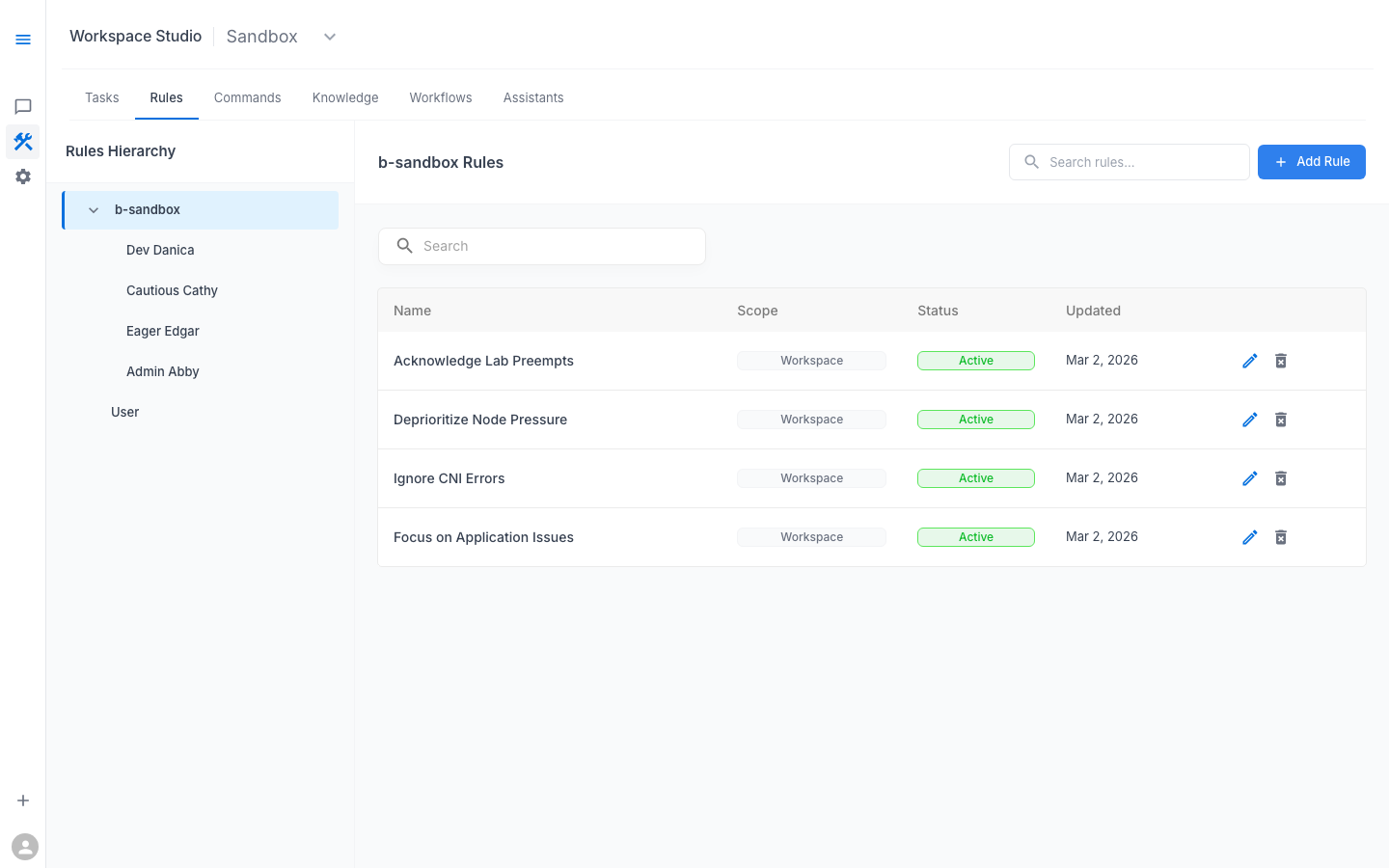
Rules Hierarchy
Rules are organized in a hierarchy that controls scope:
Left panel -- Rules Hierarchy tree:
-
b-sandbox (workspace level) -- rules that apply to all assistants in this workspace
-
Dev Danica -- rules specific to Dev Danica only
-
Cautious Cathy -- rules specific to Cautious Cathy only
-
Eager Edgar -- rules specific to Eager Edgar only
-
Admin Abby -- rules specific to Admin Abby only
-
-
User -- rules that apply when specific users are interacting
Right panel -- Rules table:
Shows the rules at the selected scope level with columns: Name, Scope, Status, Updated.
Rule Properties
Each rule has:
-
Name -- descriptive identifier (e.g., "Acknowledge Lab Preempts")
-
Scope -- what the rule applies to
-
Status -- active or inactive
-
Updated -- last modification timestamp
Example Rules
These examples show how rules reduce noise in the Sandbox lab environment:
Rule: Acknowledge Lab Preempts (Workspace level)
When encountering node preemption events or spot instance terminations, acknowledge them as expected behavior in a lab environment. Briefly note them but deprioritize them in the investigation -- they are not root causes for application issues.
Rule: Deprioritize Node Pressure (Workspace level)
Node pressure, CPU/memory pressure conditions, and taints related to resource constraints are known lab constraints. Note them as background context but focus the investigation on application-layer issues (pod crashes, log errors, config mismatches, connection failures).
Rule: Ignore CNI Errors (Workspace level)
CNI plugin errors and intermittent network-related node issues occur periodically in this lab cluster. Do not flag them as root causes unless they directly correlate with the user's reported symptom.
Rule: Focus on Application Issues (Workspace level)
When troubleshooting online-boutique namespaces, prioritize application-level findings (CrashLoopBackOff, error logs, misconfigured environment variables, connection failures) over infrastructure-level noise. The goal is to help users learn the troubleshooting workflow, not diagnose lab infrastructure.
These rules allow the AI Assistant to say "I see node pressure on some nodes (this is expected in this lab environment)" and then move on to the actual application issue, instead of spending half the response analyzing infrastructure noise.
Creating a Rule
-
Select a scope node in the left hierarchy tree (e.g., "b-sandbox" for workspace-wide)
-
Click + Add Rule in the upper right
-
Enter the rule name and content
-
Save the rule
Rules require write permissions. Read-only users can view rules but not create or modify them.
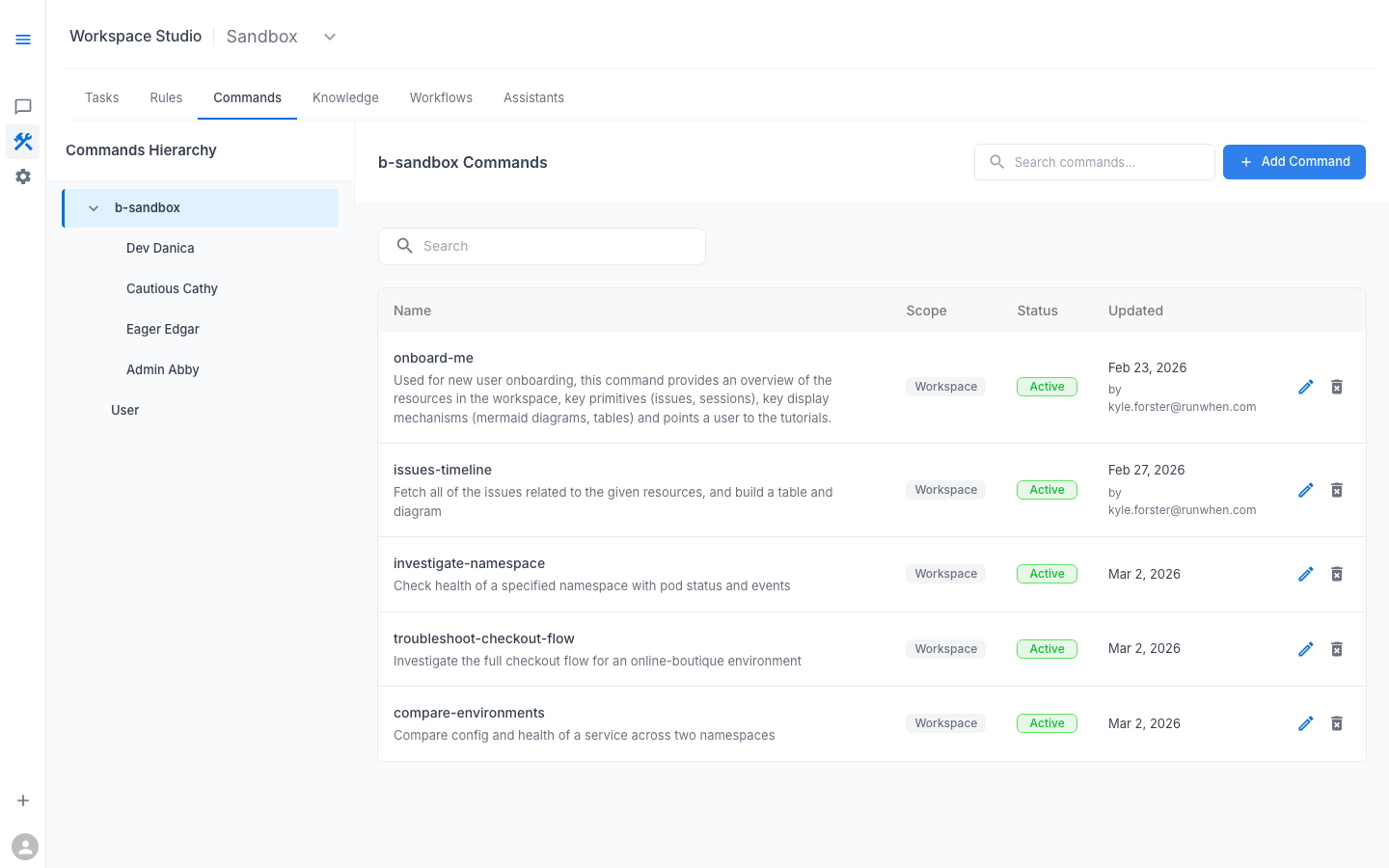
Commands
Commands provide structured, repeatable actions that users can invoke in Workspace Chat. Instead of relying solely on free-form natural language, commands offer a predefined interface for common operations.
Why Commands Matter
Commands standardize common workflows so that every team member gets consistent results. Instead of hoping a new user phrases their question optimally, a command encapsulates the right approach.
Commands Hierarchy
Commands follow the same two-panel layout as Rules:
Left panel -- Commands Hierarchy:
-
b-sandbox (workspace level) -- commands available to all assistants
-
Dev Danica, Cautious Cathy, Eager Edgar, Admin Abby -- per-assistant commands
-
-
User -- personal commands for individual users
Right panel -- Commands table:
Columns: Name, Scope, Status, Updated
Example Commands
Command: Investigate Namespace (Workspace level)
Check the health of a specified namespace. List all pods and their status, identify any in CrashLoopBackOff or Error state, check recent warning events, and inspect logs for crashing containers. Summarize findings by service with severity.
Command: Troubleshoot Checkout Flow (Workspace level)
Investigate the full checkout flow for a specified online-boutique environment. Check checkoutservice pod status, inspect logs for errors, verify service-to-service connectivity (payment, shipping, email, cart), and identify the failing component with root cause and remediation.
Command: Compare Environments (Workspace level)
Compare the configuration and health of a service across two namespaces (e.g., dev vs test). Highlight differences in environment variables, image versions, replica counts, and resource limits. Flag any configuration that exists in one environment but not the other.
Creating a Command
-
Select a scope node in the hierarchy
-
Click + Add Command in the upper right
-
Define the command name, parameters, and behavior
-
Save
Commands require write permissions.
Knowledge
The Knowledge tab manages the information sources that Engineering Assistants reference during investigations. This allows you to supplement the platform's built-in understanding with your organization's specific context -- internal wikis, runbooks, architecture docs, or custom troubleshooting guides.
[NEEDS HUMAN REVIEW] This section needs detailed documentation from the product team covering:
-
Supported knowledge source types
-
How to add and manage knowledge entries
-
How knowledge integrates with AI analysis during investigations
-
Best practices for knowledge organization
Workflows
Workflows automate sequences of actions triggered by events such as alerts, SLO violations, or schedules.
Available Actions
-
Search existing workflows
-
Add Workflow to create new automation
Integration Targets
Workflows can integrate with:
-
Slack -- send notifications, create channels, post investigation results
-
PagerDuty / Opsgenie -- trigger or update incidents
-
Webhooks -- connect to any HTTP endpoint
-
RunSessions -- automatically start investigations
Example: Automated Alert Response
-
An SLO alert fires (e.g., error rate exceeds threshold)
-
A Workflow triggers automatically
-
The Workflow starts a RunSession with Cautious Cathy
-
Diagnostics run automatically
-
Results are posted to a Slack channel
-
When the on-call engineer opens the ticket, diagnostic context is already available
Assistants (Studio Tab)
The Assistants tab provides the same management interface documented on the dedicated Configuring Engineering Assistants page. From here you can:
-
View all configured assistants with their profiles and confidence thresholds
-
Click into an assistant to edit its configuration
-
Add new assistants with Add Assistant
The list shows each assistant with:
-
Avatar and name
-
Description
-
Access level (Everyone, or specific users)
-
Read/Write permissions
-
Filter Confidence and Run Confidence percentages
See the Configuring Engineering Assistants page for complete documentation.
Screenshots
Workspace Studio Rules — Active rules for lab noise reduction
Workspace Studio Commands — Custom commands for troubleshooting workflows