
SLXs define what AI Assistant can see, learn, or execute about a cloud resource.
An SLX (Service-Level eXperience) is the core unit of operational knowledge and automation within the RunWhen platform. Each SLX represents a specific service, component, or operational concern that you want to visualize, monitor, analyze, or troubleshoot in a RunWhen workspace.
An SLX defines:
-
What the service is — metadata, ownership, tags, and the relationships it has to other SLXs.
-
How the service behaves — health indicators, dependencies, and signals that describe its current state.
-
What to do when something is wrong — associated Runbooks, scripted tasks, and automation that help diagnose or resolve issues.
Key Characteristics
-
Composable: SLXs can be grouped and linked through dependencies and tags to form a graph of your broader system.
-
Actionable: Each SLX can include tasks, and best-practice checks that RunWhen executes during investigations.
-
Context-aware: SLXs carry metadata used by the AI assistant and the automation engine to understand the environment and propose next steps.
-
Tenant-scoped: SLXs belong to a specific workspace and operate within that workspace’s access controls.
Why SLXs Matter
SLXs provide the building blocks for constructing an operational model of your environment. They allow the RunWhen platform to:
-
Visualize systems and their dependencies
-
Execute targeted troubleshooting
-
Prioritize issues based on impact
-
Offer guided automation and intelligence grounded in human-authored operational knowledge
Creating an SLX
To create an SLX in a workspace:
-
Select Configuration
-
Select ADD SLX
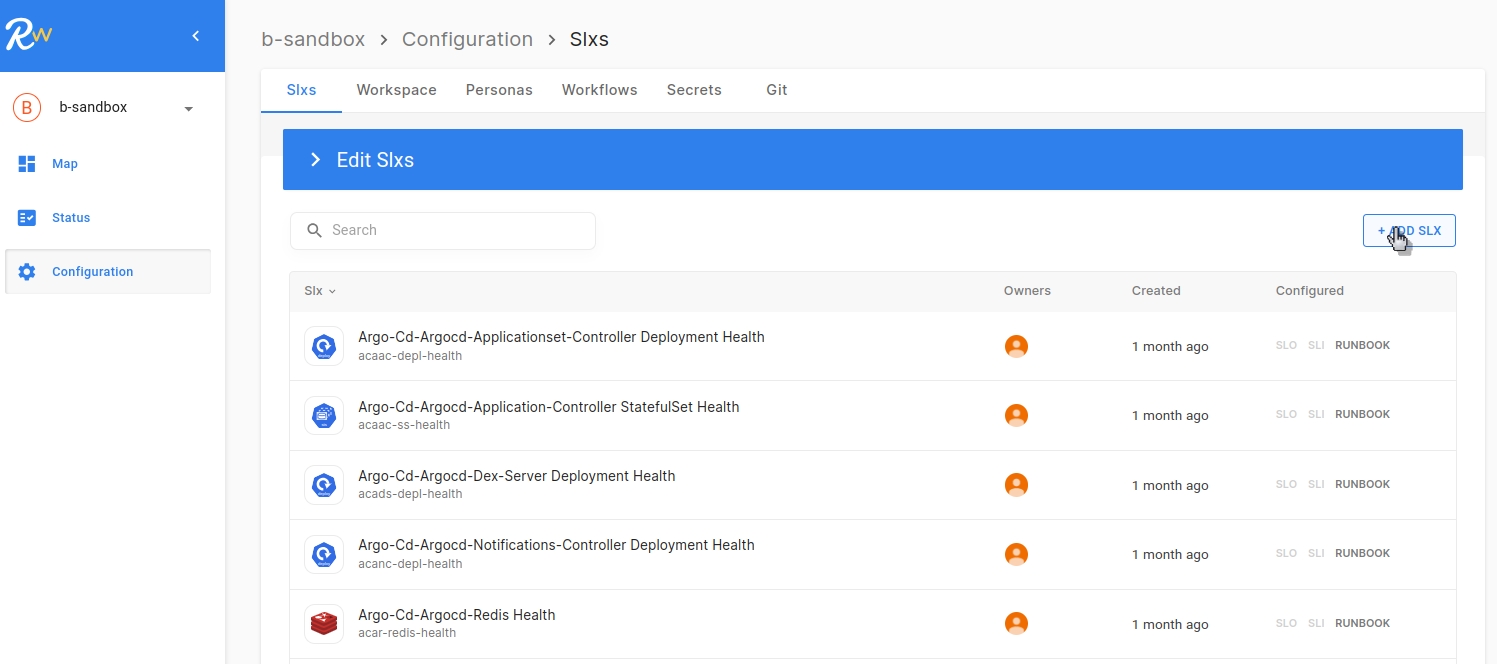
When drafting an SLX, we recommend creating a statement which captures the system component you intend to measure and the desired reliability target you are attempting to achieve. Some examples of statements are provided below:
-
The API should return 99% of GET requests within 200ms
-
The daily batch processing pipeline should complete in less than a day.
Once the statement is complete, you can add any of the of the following optional configuration items:
To persist changes to the SLX, click the COMMIT button at the bottom with a helpful message detailing the changes.