Engineering Assistants are AI-powered agents that investigate issues, run tasks, and recommend actions within your workspace. Each assistant has a configurable persona, permission level, and confidence thresholds that control its behavior.
Accessing Assistants
Assistants can be managed from two places:
-
Workspace Studio > Assistants tab
-
The dedicated Assistants page (accessible from the sidebar)
Assistant List
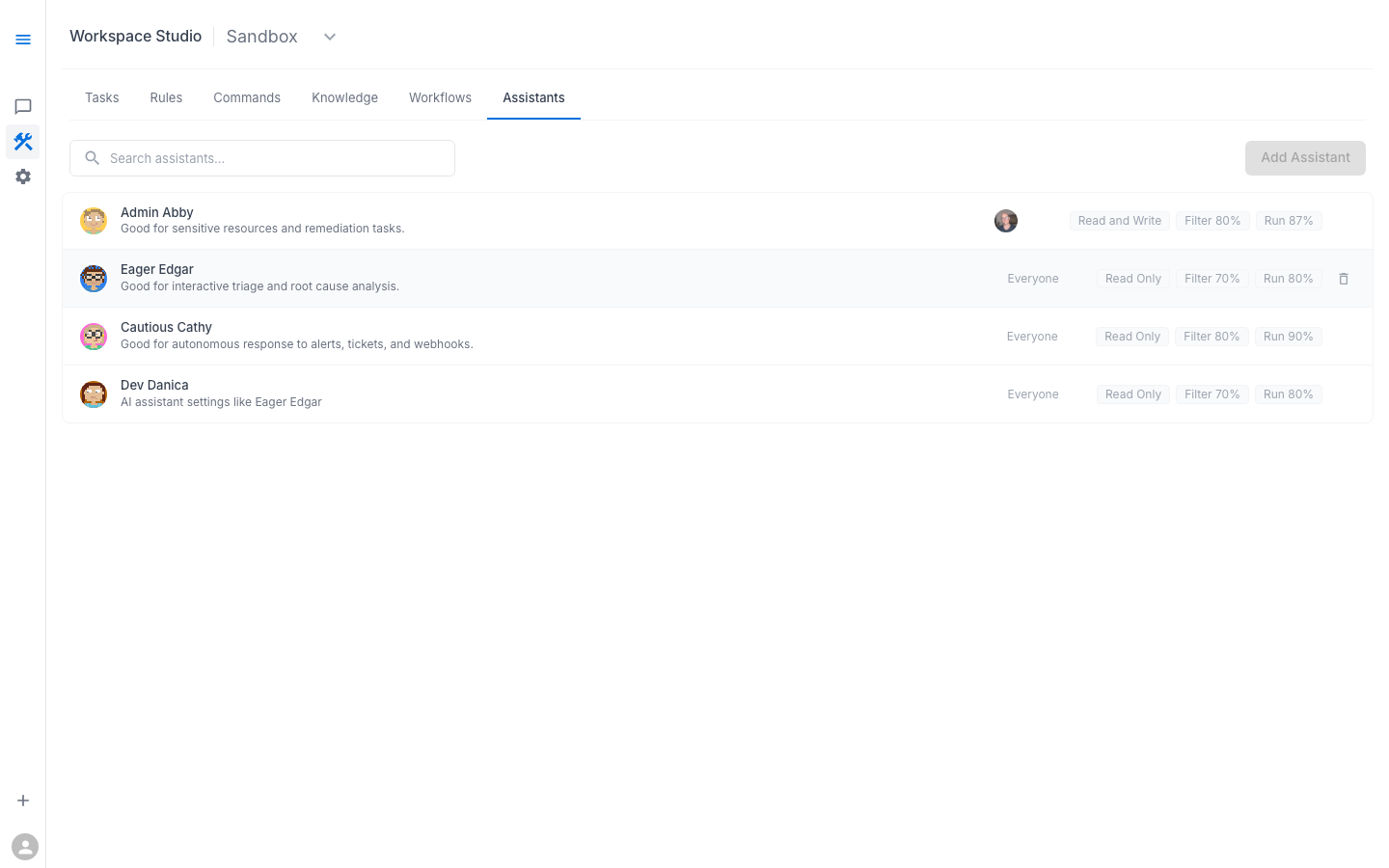
The Assistants page shows all configured assistants in a list with:
|
Column |
Description |
|---|---|
|
Avatar + Name |
The assistant's profile image and display name |
|
Description |
What the assistant is designed for |
|
Access |
Who can use this assistant (Everyone, or specific users) |
|
Permissions |
Read Only or Read and Write |
|
Filter Confidence |
Threshold for suggesting tasks (e.g., 70%) |
|
Run Confidence |
Threshold for executing tasks (e.g., 80%) |
Action buttons: Add Assistant (top right), Delete (trash icon per assistant).
Available Assistants
The Sandbox workspace includes four pre-configured assistants:
Admin Abby
-
Profile: Strict — Read and Write
-
Access: Restricted (specific users only)
-
Filter Confidence: 80% | Run Confidence: 87%
-
Best for: Sensitive resources and remediation tasks
-
Behavior: Has write access, meaning it can suggest and execute remediation actions — not just diagnostics. Restricted to authorized users for security.
Eager Edgar
-
Profile: Standard — Read Only
-
Access: Everyone
-
Filter Confidence: 70% | Run Confidence: 80%
-
Best for: Interactive triage and root cause analysis
-
Behavior: Proactive, runs tasks readily, explores broadly. Good choice when you're actively investigating and want the assistant to be thorough.
Cautious Cathy
-
Profile: Conservative — Read Only
-
Access: Everyone
-
Filter Confidence: 80% | Run Confidence: 90%
-
Best for: Autonomous response to alerts, tickets, and webhooks
-
Behavior: Higher confidence thresholds mean fewer false positives. Better for automated pipelines where you want more certainty before acting.
Dev Danica
-
Profile: Standard — Read Only (Custom)
-
Access: Everyone
-
Filter Confidence: 70% | Run Confidence: 80%
-
Best for: Developer-focused troubleshooting
-
Behavior: Similar settings to Eager Edgar, tailored for development environments. Good default choice for developers doing self-service investigation.
Configuring an Assistant
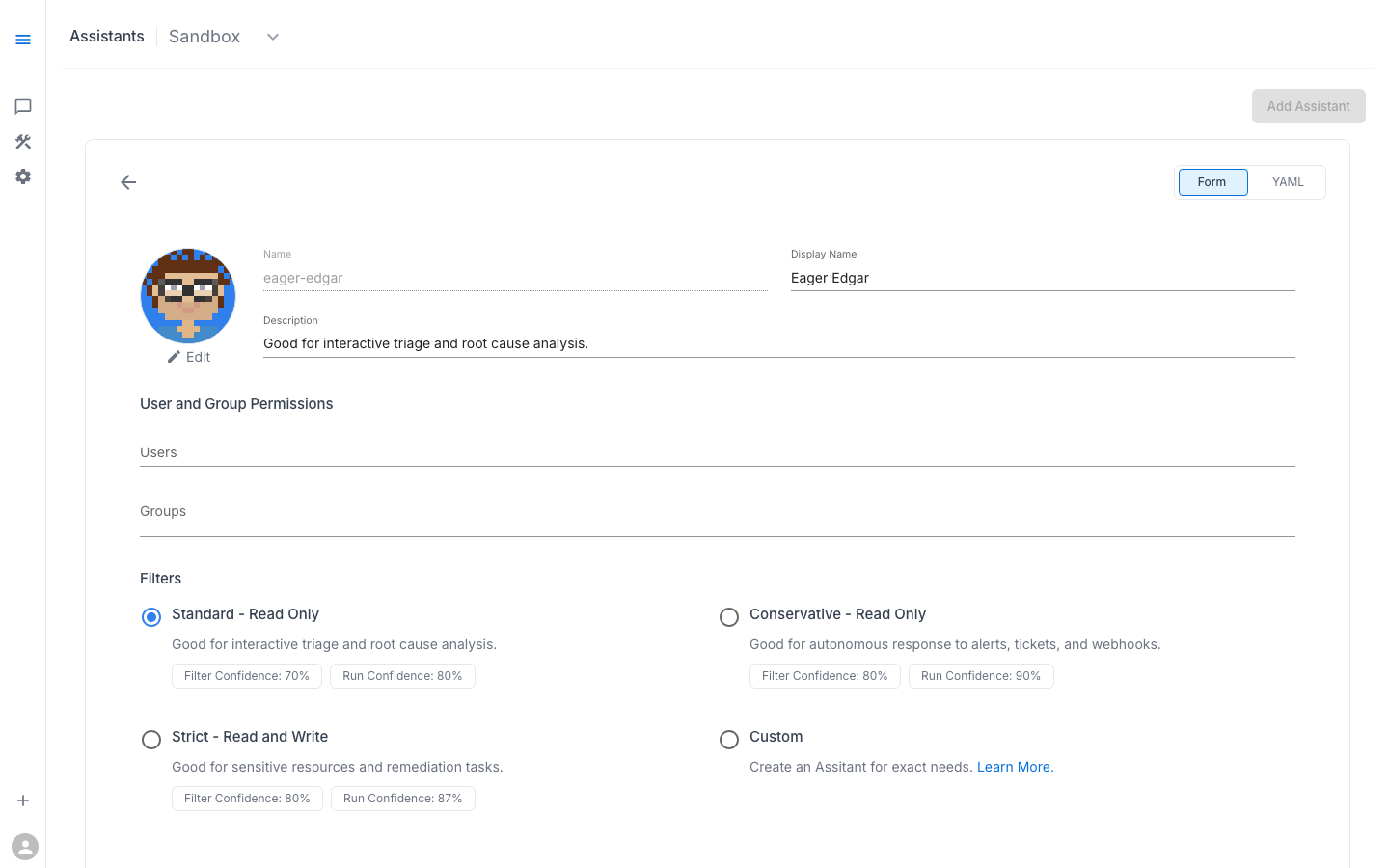
Click an assistant's name to open its configuration page. You can switch between Form and YAML views using the toggle in the upper right.
Form View
The form provides structured fields:
Identity:
-
Name — internal identifier (e.g.,
eager-edgar) -
Display Name — shown in the UI (e.g., "Eager Edgar")
-
Description — explains the assistant's purpose
-
Avatar — click "Edit" to change the profile image
User and Group Permissions:
-
Users — assign specific user access
-
Groups — assign group-based access
Filters (Preset Profiles):
Four radio buttons to choose a profile:
|
Profile |
Access |
Filter |
Run |
Description |
|---|---|---|---|---|
|
Standard — Read Only |
Read Only |
70% |
80% |
Good for interactive triage and root cause analysis |
|
Conservative — Read Only |
Read Only |
80% |
90% |
Good for autonomous response to alerts, tickets, and webhooks |
|
Strict — Read and Write |
Read and Write |
80% |
87% |
Good for sensitive resources and remediation tasks |
|
Custom |
Configurable |
Configurable |
Configurable |
Create an assistant for exact needs |
YAML View
Switch to the YAML tab for full configuration control. The YAML representation includes all settings and is suitable for version control and bulk configuration.
Saving Changes
Assistant changes follow a Git-based workflow:
-
Select a Branch (defaults to main)
-
Make your changes
-
Click Commit to save
This ensures all configuration changes are versioned and auditable.
Creating a New Assistant
-
Click Add Assistant in the upper right
-
Choose a preset profile or select Custom
-
Fill in name, display name, and description
-
Configure user and group permissions
-
Set confidence thresholds (or use the preset values)
-
Click Commit to save
Understanding Confidence Thresholds
Confidence thresholds are the most important tuning knob for assistant behavior.
Filter Confidence
Controls which tasks the assistant considers relevant to a query:
-
Lower (70%) — wider net, considers more tasks, may include some less-relevant ones
-
Higher (80%) — more selective, only considers highly relevant tasks
Run Confidence
Controls when the assistant actually executes a task:
-
Lower (80%) — runs tasks more readily, faster investigation
-
Higher (90%) — needs more certainty, fewer unnecessary task executions
Practical Guidance
|
Scenario |
Recommended Profile |
Why |
|---|---|---|
|
Interactive troubleshooting |
Standard (70/80) |
Explore broadly, run tasks freely — a human is reviewing |
|
Automated alert response |
Conservative (80/90) |
Reduce noise, only act on high-confidence findings |
|
Remediation with write access |
Strict (80/87) |
Higher thresholds + write access = safety margin |
|
Custom advanced use case |
Custom |
Tune thresholds to specific operational requirements |
RBAC and Security
Assistants operate strictly within workspace RBAC boundaries:
-
Actions execute under the requesting user's identity
-
Assistants cannot access resources outside the workspace
-
Read-only assistants cannot perform write operations
-
All AI-triggered actions produce standard audit logs
-
Secrets are never exposed in assistant responses
-
Write-capable assistants (like Admin Abby) should be restricted to authorized users
Screenshots
Assistants list — showing all configured assistants with profiles
Assistant configuration — Form view for Eager Edgar