

MCP end-to-end flow (IDE to infrastructure)
This page is the picture of how the RunWhen Platform MCP server fits between your IDE and your infrastructure. The short version: you type a prompt; everything else happens automatically.
If you just want to install MCP, jump to Installation & Setup. The rest of this page is for evaluators, security reviewers, and anyone asking “how does this actually work?”.
What you actually do
From your editor — VS Code with Copilot, Cursor, Claude Desktop, Claude Code, or anything else that supports MCP — you do one thing:
Type a question or a request in plain English.
The AI in your editor decides which RunWhen MCP tools to call, RunWhen runs the right checks against your infrastructure, and the answer (or the artifact you just built) appears back in your editor.
Most prompts fall into one of two patterns:
- “Find out what’s happening” — “What’s unhealthy in prod?”, “Run the postgres check on db-3”, “Show me recent issues for the payments service.”
- “Build something the team will reuse” — “Write a script that checks Kafka consumer lag for
payments”, “Add a chat rule that suppresses these false positives”, “Add a knowledge article about our deploy process.”
That’s the whole user experience. You don’t pick API endpoints, manage credentials, route requests, or write boilerplate — your AI client and the RunWhen workspace handle all of it.
The diagram
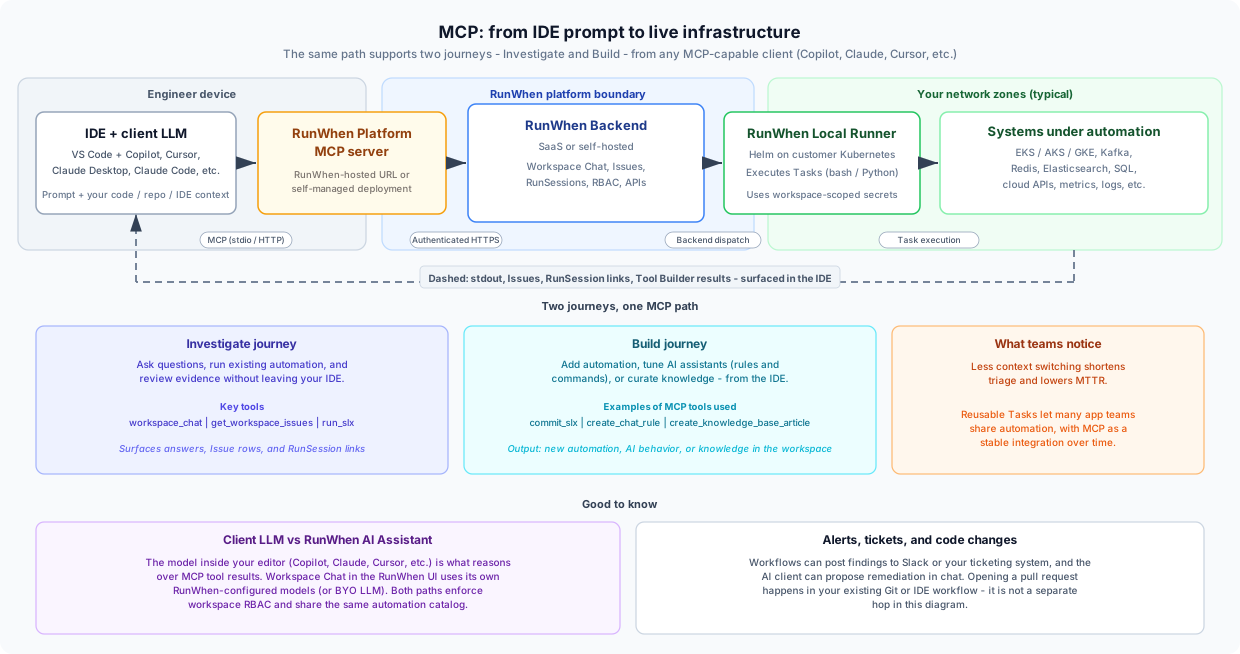
You don’t operate anything in this diagram. Tokens, transports, permissions, where checks execute — all configured once when MCP is installed, then handled for you. The diagram exists so security reviewers and platform owners can see the full path; reading it isn’t required to use MCP.
Behind the scenes (if you’re curious)
For one prompt, the path runs left-to-right and then back:
- Your IDE asks for something. Your AI client sees your prompt plus your local context — open files, repo, terminal — and decides which RunWhen tool to call.
- MCP forwards that to RunWhen. Over a local process the editor starts, or a hosted URL, depending on how MCP is installed.
- The RunWhen Backend serves the request. It looks up what you asked for and either returns existing data (issues, past investigations, search results) or kicks off something new — using your workspace permissions.
- A runner in your own cluster does the live work. For checks that touch infrastructure, the Local Runner runs the script with approved credentials, inside your network.
- The result comes back to your editor. Findings, links to the investigation, or a confirmation that something was saved — all rendered inline in your editor’s chat.
The two journeys
Same five-step path, two different intents.
Investigate
You ask, RunWhen answers. It runs existing checks, searches issues and knowledge, and writes a plain-language summary back into your editor — with links you can open in the RunWhen UI when you want more.
Typical prompts:
- “What’s unhealthy in prod right now?”
- “Run the postgres health check on db-3.”
- “Show me the last 5 high-severity issues for the payments service.”
Build
You describe what should be added; the workspace gains a new capability. That can be a new automation script, a chat rule that shapes how AI assistants behave, a slash-command, or a knowledge article. From then on, it’s available to teammates and to scheduled runs.
Typical prompts:
- “Write a script that checks Kafka consumer lag for
payments.” - “Create a chat rule that suppresses these false-positive issues.”
- “Add a slash-command that runs my standard postgres triage.”
- “Add a knowledge article describing our deploy process.”
Build actions need workspace admin permissions — they change what’s in the workspace. Investigate is read-mostly. Both ride the exact same MCP path; the difference is just which tools your AI client decides to call.
For the underlying MCP tools and full workflows, see the MCP Tool Reference, Tool Builder, and Building Operational Context.
Your local IDE context counts too
The AI in your editor can see things RunWhen cannot — the file you’re editing, your repo, your terminal — and many of the most useful prompts mix the two:
- “Look at the failing test in this file and tell me which RunWhen check would catch the same problem in production.” → your local code + RunWhen workspace data.
- “Generate a RunWhen automation that mirrors what this CI step does.” → your local CI config + a new script committed via MCP.
- “Compare this Kubernetes manifest in my repo with what is actually deployed.” → your local YAML + live cluster state.
That’s the part that’s hard to draw: MCP isn’t just “a chat client to RunWhen”, it lets the model reason about your code and your operational tooling in the same conversation.
Picking an AI client
You don’t have to standardise — any MCP-capable editor connects to the same MCP server. Two clarifications that come up a lot:
- GitHub Copilot is the client, not the model. Copilot in VS Code can be configured to use a range of models — including Anthropic’s Claude models — depending on your org’s plan. A team on Copilot can still be reasoning with Claude over RunWhen MCP tools.
- Claude Desktop and Claude Code are separate Anthropic products. Different config files, same MCP server, same token.
The model your editor uses lives in the editor’s product — RunWhen doesn’t host it. Workspace Chat in the RunWhen UI is the separate, RunWhen-hosted chat (which can be BYO LLM where supported). Both paths enforce the same workspace permissions.
Hosted vs self-hosted
You have a choice on each side, independently:
- The MCP server can be RunWhen-hosted (a URL your editor points at) or self-managed (run the open-source process in your own cluster). See Installation & Setup and the server README.
- The RunWhen Backend can be SaaS or self-hosted, independently of the above. See Deployment Options.
In every combination, the runner stays in your own cluster, so live checks always touch your infrastructure from inside your own network.
What this changes for teams
- Time to evidence drops. “Is this really broken?” becomes typing in your editor instead of switching to Slack, a runbook, or a CLI.
- The workspace compounds. Every Build action — a new check, a chat rule, a knowledge article — sticks around for the next investigation, yours or anyone else’s. The thing you just learned becomes something the workspace knows.
- Many app teams, one platform. Each team can use its preferred IDE and its own corner of the workspace; nothing custom has to be glued together per team.
- Vendor optionality. MCP is a standard protocol and your editor’s model is a client-side choice — switching IDEs or models later doesn’t require re-platforming RunWhen.
For day-to-day usage patterns, see Common User Journeys. For a vocabulary bridge between RunWhen terms and general AI/agent concepts, see RunWhen terms for AI audiences.
Related reading
| Resource | Why open it |
|---|---|
| MCP Server | Supported clients, transports, what the server is |
| Installation & Setup | Tokens, config file shapes, OAuth |
| MCP Tool Reference | Every tool the server exposes, grouped by journey |
| Tool Builder | The full Build flow for new automation scripts |
| Building Operational Context | The Build flow for rules, commands, and knowledge |
| Architecture & Overview | Backend, runner, and LLM details at platform level |
| Using the RunWhen Platform MCP server | Walkthrough of MCP in real workflows |