

First Five Minutes: An Onboarding Slash Command
This is the third post in our Favorite Slash Commands series, where we walk through the commands our team uses daily against our real environment.
Dropped in, no handoff
Our team is small enough that everyone is in and out of every workspace. Someone is on PTO, someone rotated to a different project, someone finally took that trip — and the work still has to happen. You open the workspace today, but the team has been working in it all week without you, and the whole handoff, if there was one, was a calendar invite and a link.
You open the workspace and you stop. Seven hundred SLXs. Three clusters. A dozen namespaces. A sidebar of past chats the team has been having with this environment all week. You are nominally up to speed — but you do not know where to start.
/onboard-me is a tailored onboarding command our team wrote to handle that moment. It acts as a guided tour through the workspace, designed to get whoever just opened it up to speed in the first five minutes — telling them where they are, which services matter, the conventions the assistant already applies, and the routing for who owns what. The whole thing leaves them with a question they can actually ask next.
The command
Here is the natural language the assistant follows when anyone types /onboard-me in our test workspace:
# /onboard-me — Get oriented to this workspace
The reader is new to this workspace. Help them understand wherethey are and what they can run right now. Every section shouldleave them with something they can try, not just something to read.
## 1. Workspace at a glance- One paragraph naming what this workspace covers — cluster,  environment, team.- A small scale table: clusters, namespaces, SLXs, tasks, KB  articles.
## 2. Key components and the tasks that cover themGroup services into 3–6 functional areas. For each area nameone or two representative services, an example task or SLXalready in the workspace that covers them, and the owner fromthe routing rule.
## 3. Workspace conventions the assistant already knows3–5 workspace-specific rules the assistant applies whenreasoning, each paired with the slash-command you would runto verify the rule for yourself.
## 4. Commands worth running right now, by roleDeveloper / SRE / manager — three short menus of the four orfive commands most worth typing first in each role.
## 5. Next stepA short nudge pointing at /onboard-walkthrough if they wantto actually run something, or /getting-started if the productitself is new.
Everything in that text is English. No YAML, no tool list, no schema. The instruction tells the assistant what kind of answer a new teammate needs; the assistant figures out the rest from the workspace itself. Nothing about the command is specific to our environment — drop the same forty lines into a different workspace and it produces that workspace’s answer.
What happened when we ran it today
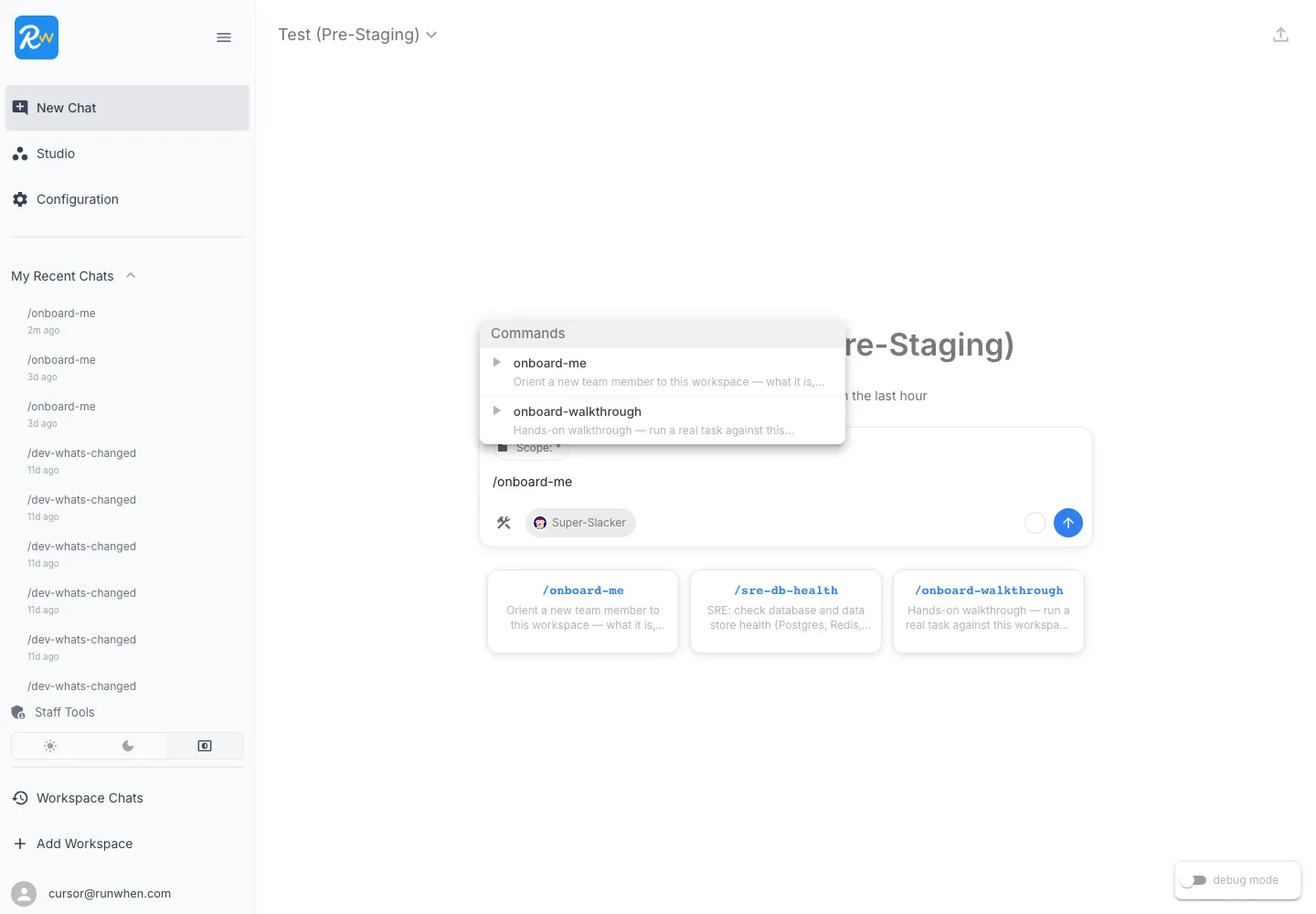
We opened a fresh chat in our test workspace and typed /onboard-me. The input surfaces the workspace’s command catalog and the matching command appears as a selectable suggestion — handy when you can’t remember exactly what a command was named.
The assistant works in stages — first a parallel sweep of the workspace’s general inventory (SLXs, resources, KB articles, tasks, rules), then a second pass of targeted searches against the components it needs to populate the report (core-pgbouncer, sobow-search, user-pages, corestate, runner, papi Deployment Health, agentfarm Deployment Health), then a third pass to confirm namespace breakdowns. About fifteen seconds in, the report widget renders. Onboarding is composed, not improvised — and you can see exactly which data the assistant pulled to compose it.
Workspace at a glance
The report opens with one paragraph of identity — what this workspace is, what it covers, what it represents to the team — and a six-row asset table.
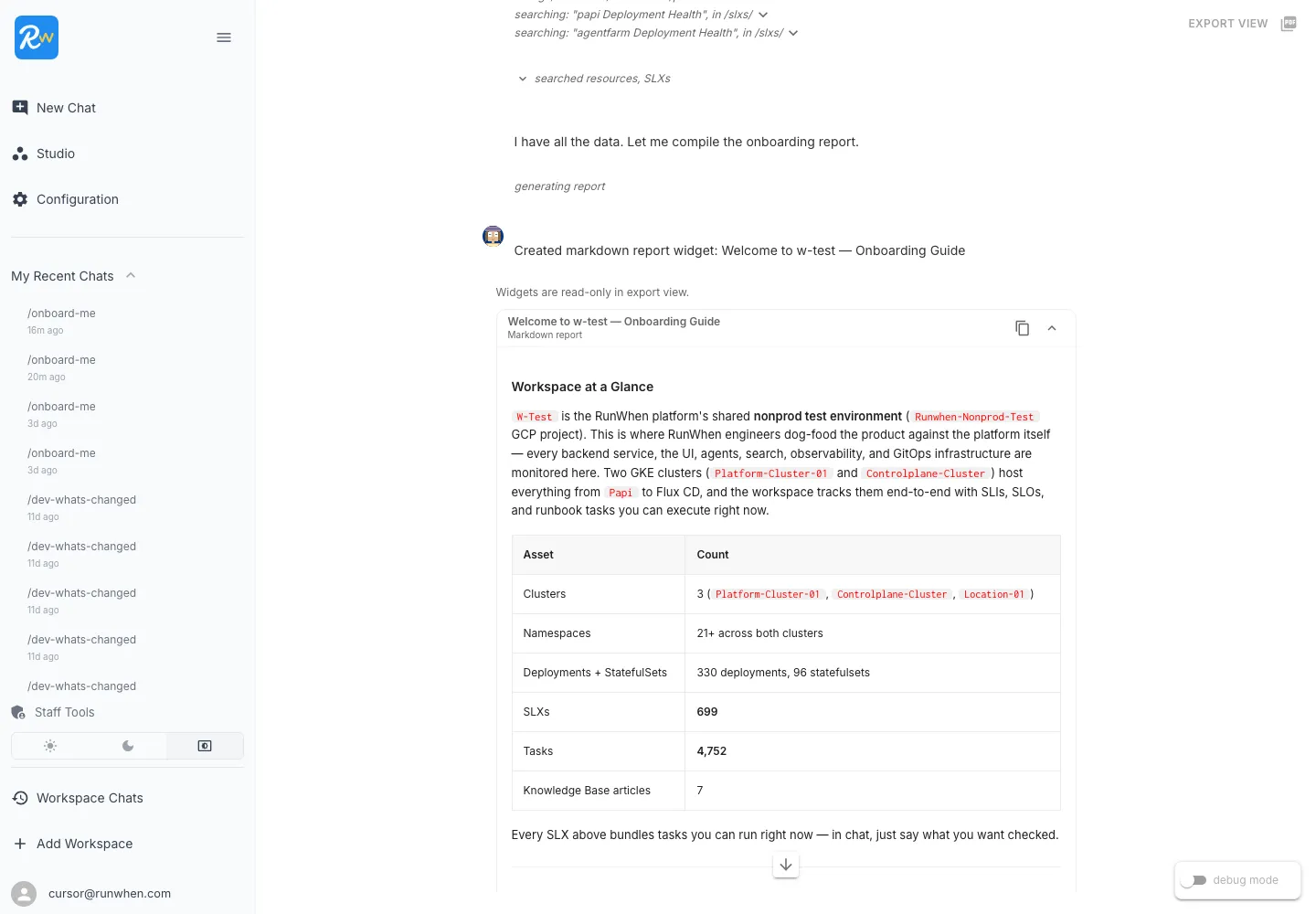
The identity paragraph names every category of thing the workspace monitors — every backend service, the UI, agents, search, observability, and GitOps infrastructure — so a new teammate immediately knows the scope is “effectively all of it.” The line “This is where RunWhen engineers dog-food the product against the platform itself” is the kind of sentence that would otherwise have to be picked up from a Slack thread three weeks in.
The asset table is small on purpose. Six rows, all pulled live from the workspace: 699 SLXs, 4,752 tasks, 7 knowledge-base articles, 330 deployments across 21+ namespaces in three clusters. The numbers are anchors, not assignments — nobody needs to memorize them, but knowing the order of magnitude “there are about seven hundred things and four thousand task instances” sets the right expectation for what’s possible to ask about. The closing line under the table — “Every SLX above bundles tasks you can run right now — in chat, just say what you want checked” — is the standing invitation.
Key components and the tasks that cover them
The next section is the part of the response a new teammate is most likely to copy out into their notes.
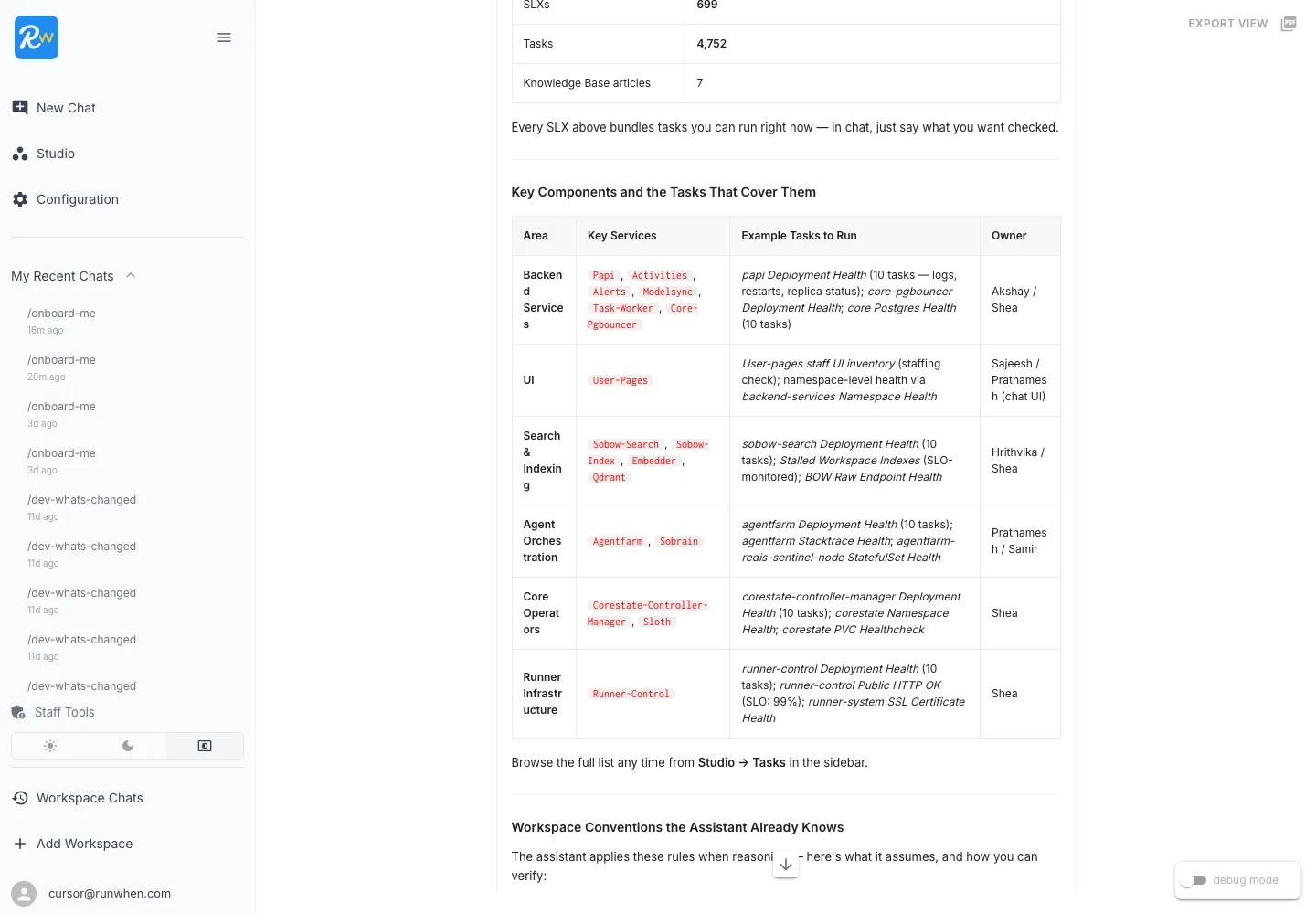
Six rows, each one a functional area of the workspace: Backend Services, UI, Search & Indexing, Agent Orchestration, Core Operators, Runner Infrastructure. The middle column is what makes it useful — every row names concrete tasks that already exist in the workspace the reader could run today. “papi Deployment Health (10 tasks — logs, restarts, replica status), core-pgbouncer Deployment Health, core Postgres Health (10 tasks)” — those are not aspirational examples. They are SLXs the team has built and committed to the workspace, found at runtime by name. If somebody added a new health check yesterday, it would show up here tomorrow.
The owner column is the routing table. If a new teammate has a question about an Agentfarm crash, they know to ping Prathamesh or Samir. A weird search-and-indexing result is Hrithvika or Shea. Backend stuff is Akshay or Shea. No need to ask in #eng “who owns this?” — the workspace already knows. None of those names are hardcoded into the command; they live in a small ownership-routing rule that maps services to people, and the same rule answers when somebody asks who owns a specific service in any other chat.
Workspace conventions the assistant already knows
This is the part of the response we care about most. A new teammate normally picks up workspace conventions over their first month — paged into a Zoom they did not need to be in, asked a question they could not answer, corrected on something they assumed. The command compresses that month into a numbered list, and pairs each convention with the slash-command you would run to verify the convention for yourself.
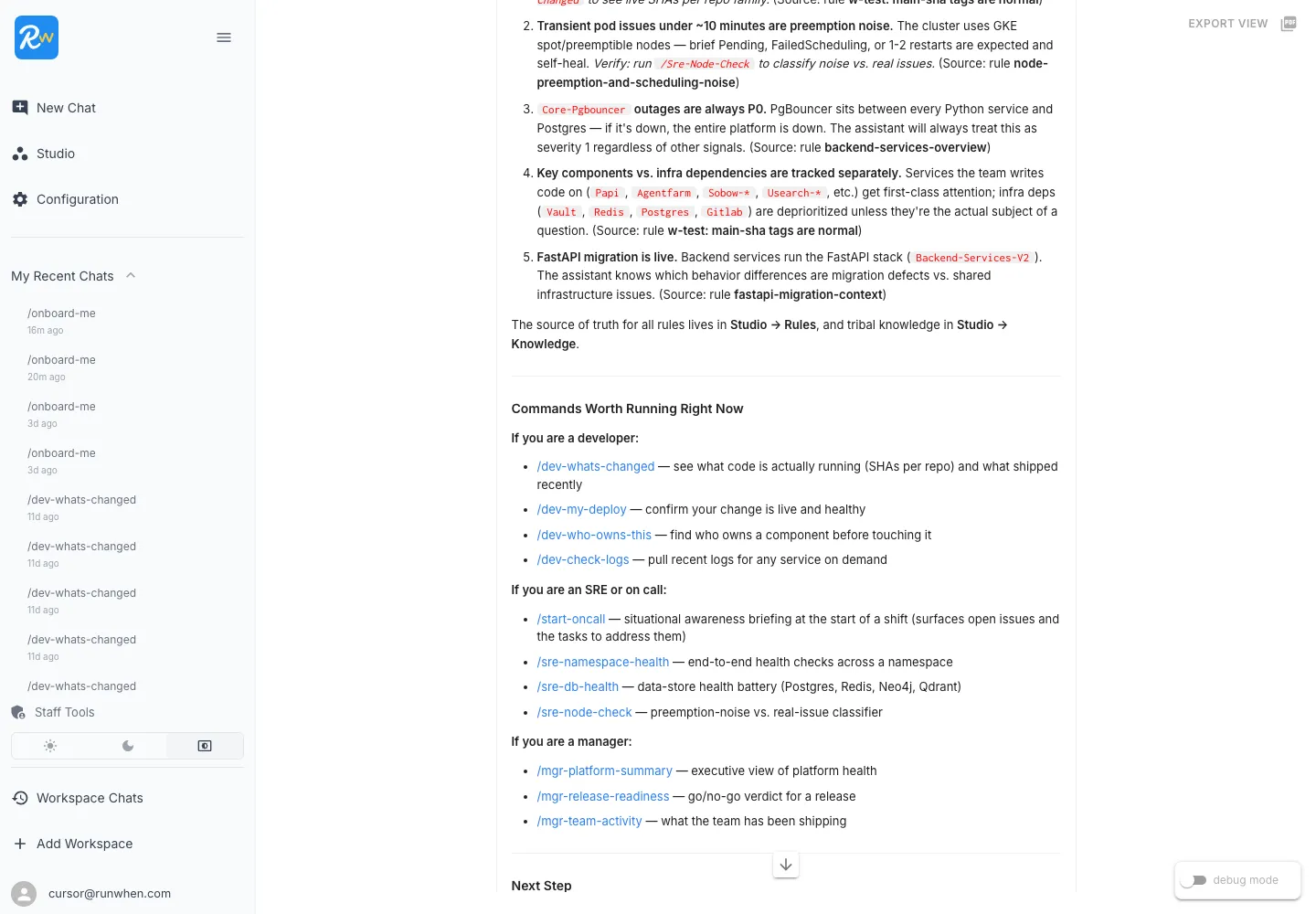
Each rule earns its place by saving the reader from a specific real-life mistake.
Main-<sha>image tags are normal. This sentence prevents a new teammate from looking at a deployment, seeing tags that don’t look like a release, and reaching for the rollback button. The assistant will not flag those tags as off-release in any answer, not just this one — the rule lives in the workspace’s chat rules.- Transient pod issues under ~10 minutes are preemption noise. This is the specific number that turns “is this a real incident?” into a yes/no question. Under ten minutes on a preemptible node, almost certainly noise; over ten, worth a look.
- Core-Pgbouncer outages are always P0. The single line that sorts “is the thing I am looking at a real incident?” If pgbouncer is red, everything is red; if it is green, something else is wrong.
- Key components vs. infra dependencies are tracked separately. A new teammate who sees an alert on Vault or Gitlab and doesn’t reach for it on day one is not being lazy — they’re following the workspace convention. The assistant deprioritizes those alerts in every answer it gives, unless the user explicitly asks about them.
- FastAPI migration is live. This is the sentence that saves the reader from landing a Django-style fix in the FastAPI tree, or the other direction. A new engineer would otherwise have to learn this by opening a PR and being gently redirected.
The Source: rule … tag at the end of each line is the part that makes the response auditable. If a teammate disagrees with a convention, they know exactly which rule to edit — “w-test: main-sha tags are normal”, “node-preemption-and-scheduling-noise”, “backend-services-overview”, “fastapi-migration-context”. The footer makes it explicit: “The source of truth for all rules lives in Studio → Rules, and tribal knowledge in Studio → Knowledge.” The conventions are not the command’s opinions; they are the team’s, recorded once in a place the rest of the platform can also read.
Commands worth running right now
The closing section is a role-grouped menu — three short lists, one per persona — followed by an explicit Next Step fork.
The developer list points at /dev-whats-changed (what code is actually running, what shipped recently), /dev-my-deploy (confirm your change is live and healthy), /dev-who-owns-this, /dev-check-logs. The SRE list is /start-oncall, /sre-namespace-health, /sre-db-health, /sre-node-check. The manager list is /mgr-platform-summary, /mgr-release-readiness, /mgr-team-activity. Each entry is a one-line description of the question the command answers, so the reader can pick by purpose rather than by name.
The Next Step fork at the end is the bit that hands the conversation back. “Ready to actually run something? /onboard-walkthrough will pick a resource and run real tasks with you.” “Returning after time away? /catch-me-up shows what changed in this workspace’s operational context, not the basics.” “Want to go deeper on the product concepts first? Run /getting-started for a walkthrough of SLXs, tasks, and how Workspace Chat works.” The closing line of the report — “The fastest way to see value is to pick a command and run it.” — is the whole point. Onboarding is not read-only. The point of it is the next thing the reader types.
The real ingredient: the workspace already knows
The thing that lets /onboard-me exist as forty lines of English is that every piece of the answer is already in the workspace.
- The SLX inventory — every task that has ever been built, with its tags, description, and owner — is queryable. The command does not list services and ask the assistant to invent example tasks; it asks the assistant to find the tasks already there.
- The chat rules — “
main-<sha>tags are normal,” “vault and other infra dependencies are background noise unless they spike,” “Papi is the central API gateway worth monitoring” — are stored in the workspace and applied to every answer the assistant composes, not just this command’s. - The knowledge-base articles — the longer-form explanations of cluster purposes, namespace responsibilities, environment conventions — are the same. Workspace-scoped, versioned, named.
The implication matters more than it sounds. The same forty lines of command text, dropped into a different workspace, produce that workspace’s answer — drawing on that workspace’s tasks, rules, and KB. Our team did not have to write a different /onboard-me for w-test versus b-sandbox versus any of the other workspaces we run day to day. The command asks the workspace to introduce itself.
Adding a new rule or KB article is a non-deploy change. The next /onboard-me run picks it up automatically. If a team decides next week that “Observability stack outages always route to the data engineering on-call”, they write one chat rule and the next new hire’s response reflects it. There is no regenerate-the-docs step. The docs are the workspace.
If you have not built any chat rules or KB content yet, most of what you need can be added in a few minutes from your own editor through the RunWhen Platform MCP server. None of it is code; all of it is words.
What else could a guided-orientation command answer?
Onboarding to a workspace is one flavor of “where am I?” question. The same ingredients — workspace metadata, chat rules, KB content, a command that asks the workspace to compose an answer — work for a lot of adjacent ones.
- Onboarding to a repo — “I just inherited this codebase. What does each top-level directory do, who owns it, and what pages on-call if it breaks?” Same idea as
/onboard-me, scoped to a repository. - Onboarding to a service — “I am on call for
papinext week. What does it do, what depends on it, and what tasks should I have warm in my head?” The same guided tour, scoped to a single service. - Onboarding to an incident — “I just got paged into this Zoom. What is the symptom, what has been tried, and where in the runbook are we?” Drawing on active session history and chat rules rather than the workspace catalog.
- Onboarding to a sprint — “It is Monday. What did the team commit to, what shipped last week, and where does the open work live?” A project-scoped version of the same question.
The common thread: all of these are orientation problems whose answers live inside the workspace already. The reader does not want a recommendation; they want enough context to ask their next question well. A slash command is the consistent way the team asks; the workspace is what answers.
If we have done this right, the next time someone new shows up at one of our workspaces wondering where to start, they will type six characters and get an answer the team has agreed on. They will leave the response not with a list of things to read, but with a question of their own they are ready to type next.
The full onboarding suite
/onboard-me is the starting point, but it is not the only onboarding command we run. Over time we built out three companion commands that handle the distinct moments that follow the first orientation. Together they form a short path from “I have never opened this workspace” to “I can run something useful right now.”
/onboard-walkthrough — The hands-on tour
The reader has read /onboard-me and now wants to actually run things. /onboard-walkthrough guides them through a sequence of real, read-only actions — no setup, no risk.
Here is the natural language it follows:
# /onboard-walkthrough — Guided hands-on tour
The reader has read /onboard-me and now wants to actually RUN things.Guide them through a short sequence of real, safe actions in thisworkspace, narrating what each result means. All steps are read-only;say so up front. Pause after each step's output to explain it in oneor two sentences before moving on.
## Step 1 — What's running right nowRun the `detect-dev-activity` SLX. Explain: these are the live imageSHAs per repo family in runwhen-env-test; `main-<sha>` is normal here;Okteto entries are developers working in the cluster right now.
## Step 2 — Current healthLook at active issues (last 24h). Group by severity and explain the1-4 scale with real examples from what comes back. If nothing isactive, say so — a quiet day is a valid result, and point at theseverity-mapping rule for what would matter.
## Step 3 — One holistic reportWalk them through what `/runwhen-health` covers (capacity, K8s state,app errors, core dependencies, GitOps) and run it if they confirm.Explain the RED/YELLOW/GREEN verdict line when it lands.
## Step 4 — Release pictureRun `/release-status`. Explain the release chain (test → watcher →beta → production), the tag formats, and how to read what it returns.
## Step 5 — Pick your own adventureOffer three concrete next actions based on their role:- Developer: `/dev-whats-changed` for commit-level detail- SRE: `/mgr-release-readiness-infra-review` for the deep readiness cut- Manager: `/release-readiness-standup` for the daily digest shape
End with one line: everything they just saw is reproducible via theslash commands — no need to remember the SLX or task names.
Each step runs against live infrastructure and produces output the reader can inspect in real time. By the time the walkthrough finishes, a new teammate has watched five commands execute, seen actual issues and tags from the cluster, and been handed three role-scoped next actions. They are not reading documentation — they are driving the workspace.
/getting-started — The product itself is new
Sometimes the person opening the workspace does not just need to know what this workspace monitors. They need to know what a workspace is. /getting-started is for the reader who has never used RunWhen before — a brand-new hire, someone from a neighboring team, or an executive who asked for a demo and got an invite instead.
# /getting-started — RunWhen concepts orientation
The reader is new to RunWhen itself. Give them a mental model of the productusing THIS workspace (stg-test) as the running example. Every concept shouldend with something they can see or run right now. Keep it under 400 words.
## 1. The core loop, in one paragraphExplain: RunWhen monitors infrastructure through automated health checks.Scripts (tasks) run on a runner against live systems, produce issues, and theAI assistant helps triage them.
## 2. The five objects that matterOne or two sentences each, plus a "see it now" pointer:- SLX — a service-level check bound to a resource- Task / Runbook — the script an SLX runs- Issue — what a task emits when something needs attention; severity 1-4- RunSession — one execution of a task, with full output history- Assistant / Persona — a scoped AI helper with its own rules and task filters
## 3. Knowledge, rules, commands — how the assistant gets smart- KB articles = durable facts- Rules = short behavior directives always applied- Commands = slash-command procedures like this one
## 4. Severity in 20 secondsThe 1-4 scale, and one line on how this workspace maps Kubernetes events to it.
## 5. Next stepPoint them at `/onboard-me` to learn THIS workspace specifically, or`/onboard-walkthrough` to run something hands-on.
This command delivers the product concepts in under a minute and hands the reader directly into the workspace-specific onboarding path. It is the top of the funnel.
/dev-whats-changed — The developer catch-up
A developer who has been away — long weekend, PTO, rotated to a different project — opens the workspace and needs to answer one question: what code is running and what changed while I was gone? /dev-whats-changed layers the answer in three passes: a live SHA snapshot per repo family from the cluster, the commit history from the last release tag to the current main SHA for each repo, and an optional deep-dive into recent issues correlated to deployed SHAs. It is the developer-facing complement to the role-grouped command menus in /onboard-me.
The onboarding arc, in four commands
The four commands form a path with a clear handoff at each step. A reader who knows neither the product nor the workspace starts with /getting-started, which ends by pointing them at /onboard-me. /onboard-me gives them the workspace map and the command menu, and ends by pointing them at /onboard-walkthrough if they want to run something. /onboard-walkthrough runs five real checks and ends by offering three role-scoped commands — one of which is /dev-whats-changed. A developer who went through the arc on their first day can come back after a long weekend, skip everything, and type four words to pick up exactly where they left off.
None of these commands hardcode workspace names, service lists, or owner names. Drop the same four into a different workspace and they produce that workspace’s answer — drawing on that workspace’s SLX inventory, chat rules, KB articles, and ownership map. The commands are the scaffolding; the workspace is the content.
This post is part of the Favorite Slash Commands series. Earlier posts covered Release Readiness — the command that replaced our pre-release checklist — and What Changed? — the command developers run when they get back from a long weekend. Up next, we will look at how the team uses /start-oncall to take a clean handoff at the start of a shift.